Contact management
Contact management. One record for every customer.
A client database for businesses of any size. Your website forms, newsletters, customer emails and tasks all fill in the same record, so everyone on your team sees the whole story of a customer in one place.
- One list for every product
- Unlimited teammates
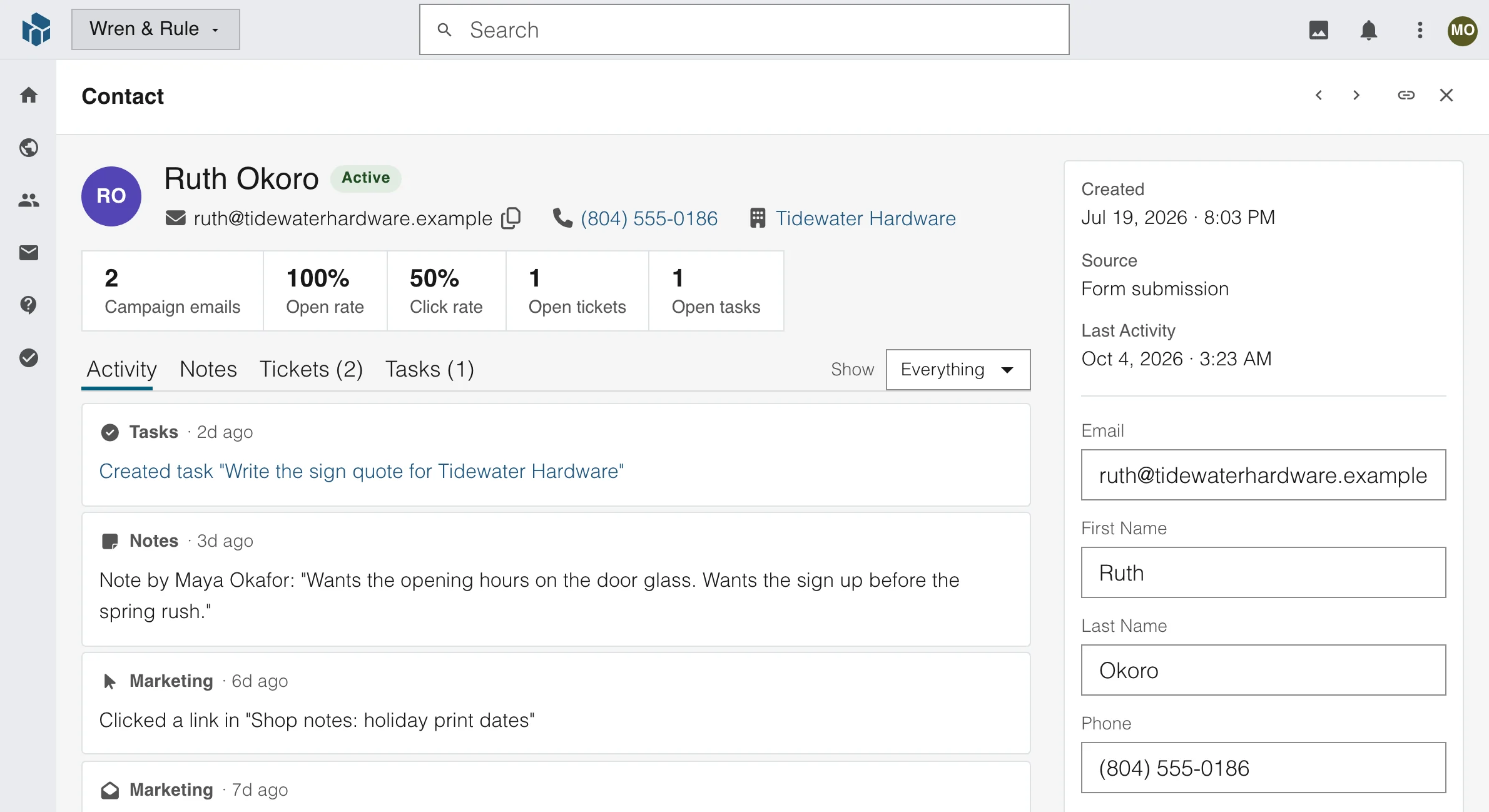
Contacts
One record for each person
Keep a name, an email address, a phone number and a company. Then add the fields your business needs, such as the kind of job or who referred them.
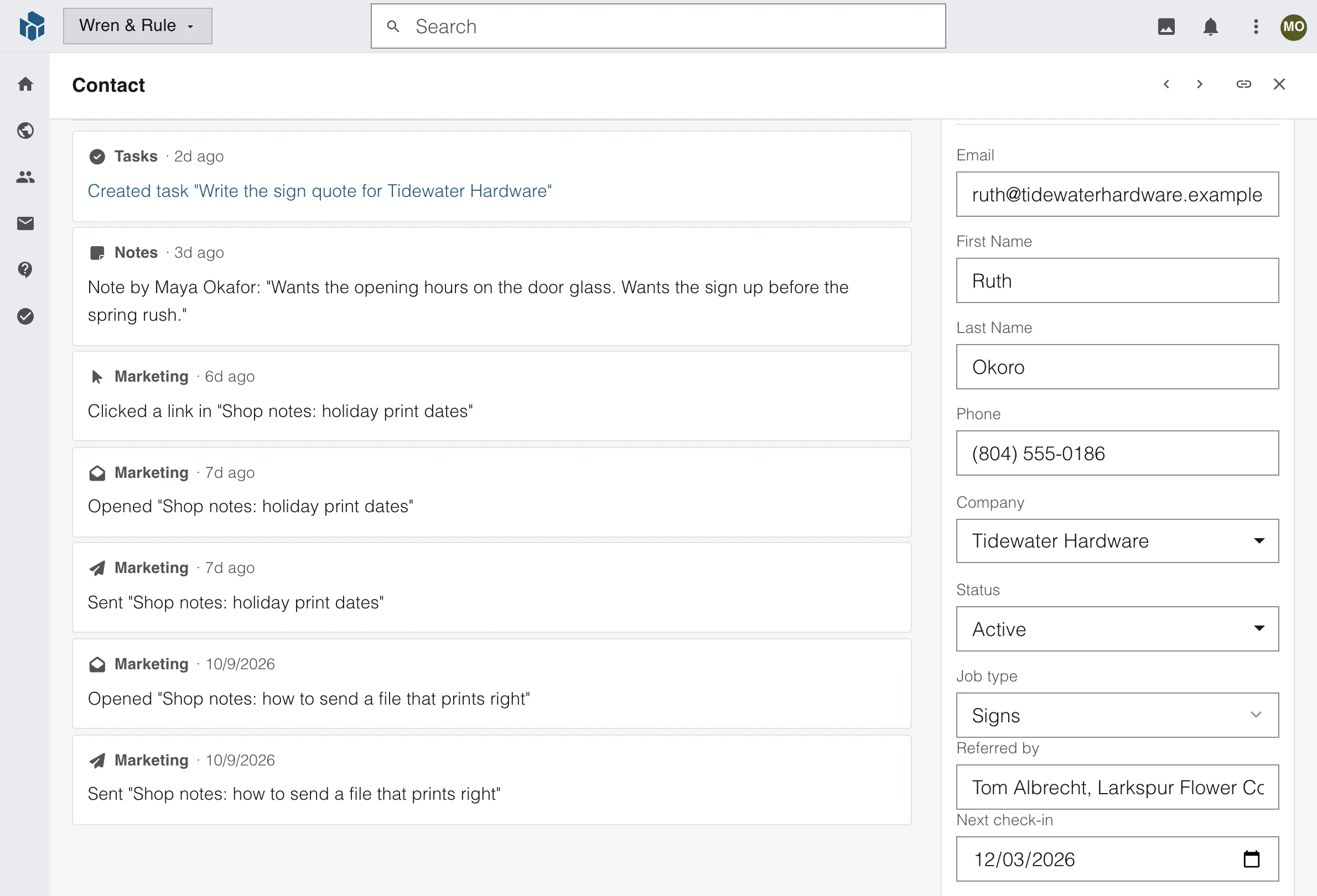
Fields of your own
Add text, numbers, dates, dropdowns, checkboxes and pictures. There are 17 kinds of field to choose from.
The company they work for
Link a person to a company, and open the company from their record.
Their email choices
Set on the record whether a person gets newsletters and your automatic customer emails.
Contacts
Group people with lists and tags
Make a list for people who belong together, such as a class or a newsletter audience. Tag anyone with the words you already use.
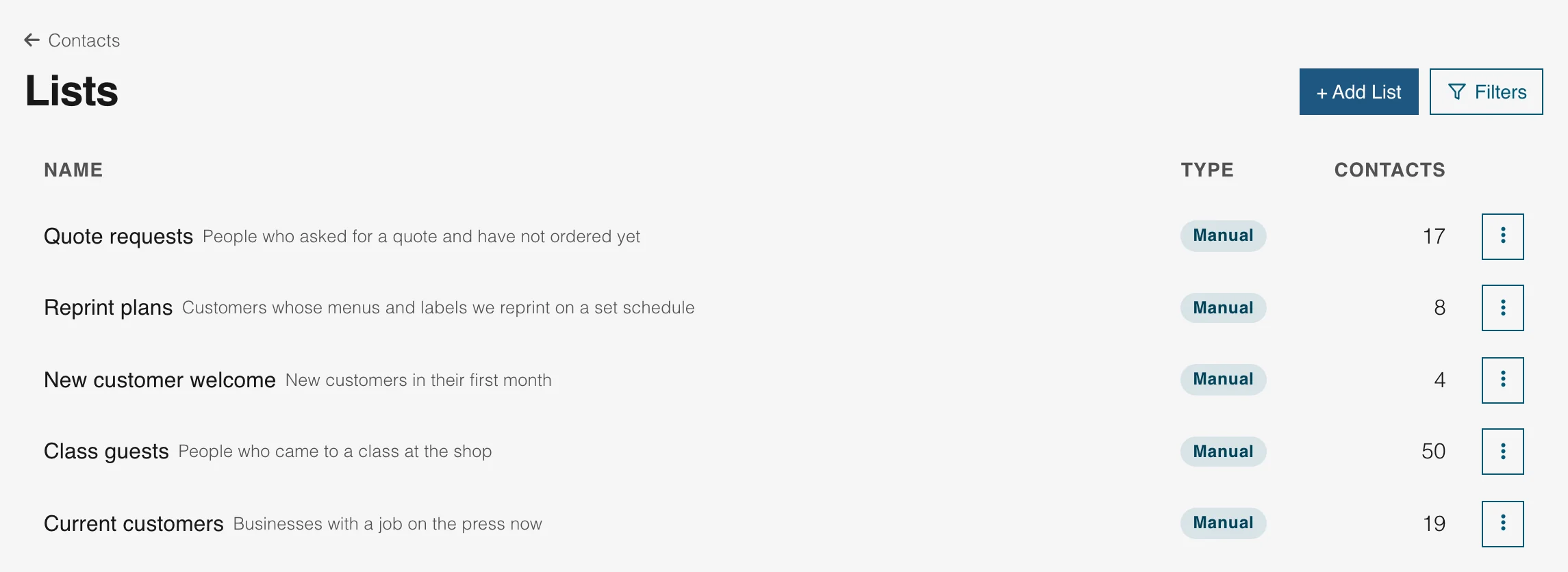
Lists you build
Add a person to a list, or take them off it, from the list or from their own record.
Tags shared with your other products
The same tags work on contacts, customer emails and tasks, so one word finds all three.
Two tags become one
Merge two tags that mean the same thing. Everything that carried either one keeps the tag.
Contacts
Companies, each with its people
A firm that sells to other firms needs to see who works where. A company page shows its details and every person you know there.
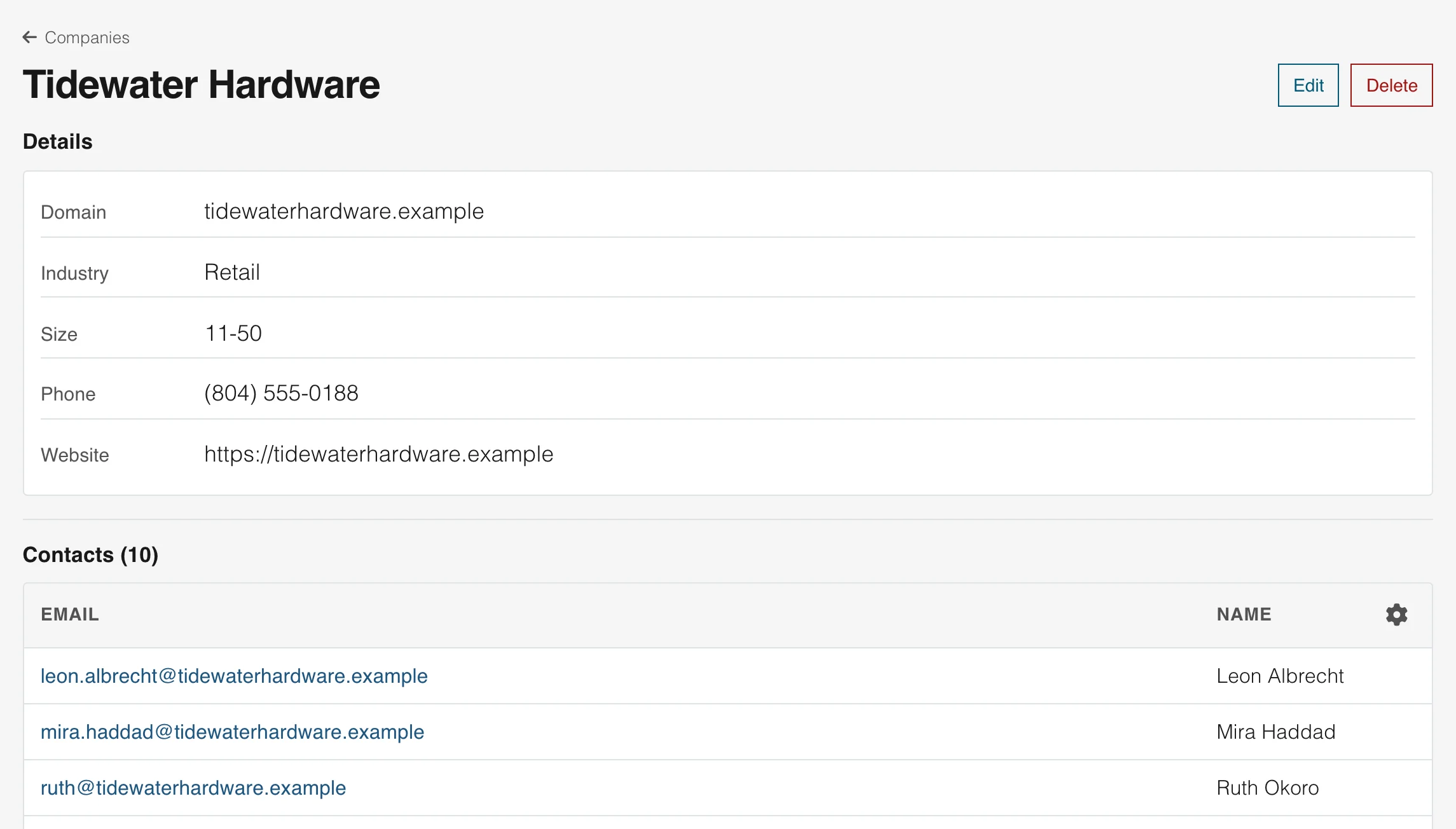
Everyone at one company
Open a company to see all of its people, instead of searching for each name.
Made for you on import
Put a company name in a row of your file, and the import creates the company when it is new.
Filter by company
Show only the people of one company in your contact list.
Contacts
Bring a spreadsheet in, take your list out
Upload a CSV file, match its columns to your fields and choose what happens to people you already have. A large file goes in as parts of 500 rows.
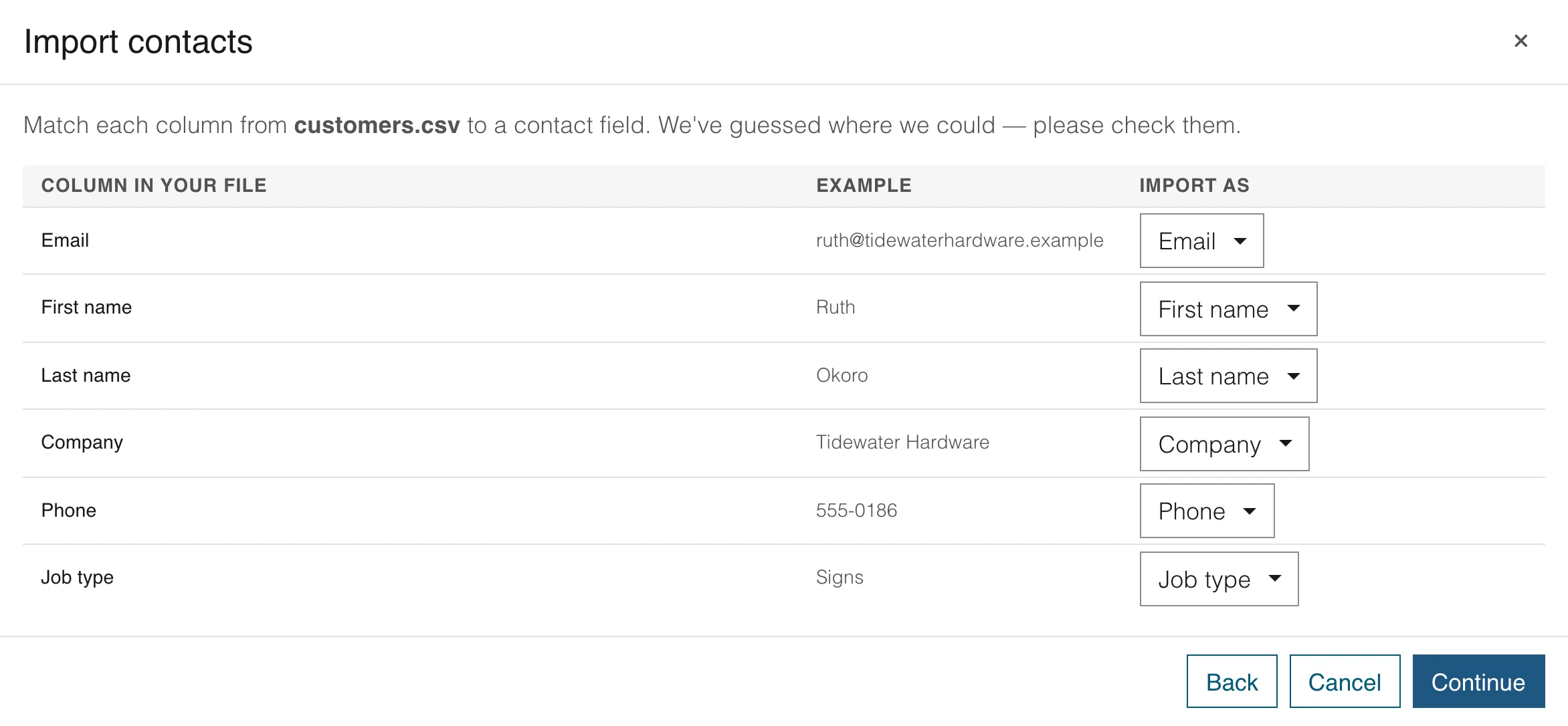
Match your columns
Match each column of your file to a contact field, or to one of your own fields.
People you already have
Skip them, update them with the new details, or replace their details with the file.
Download your list
Download the list as a file whenever you like. It holds email, names, phone, company, status, tags, sites and date added.
Contacts
Everything that happened, on one page
Open a person and see the newsletters they opened, the customer emails they sent, the tasks you made for them and the notes your team wrote.
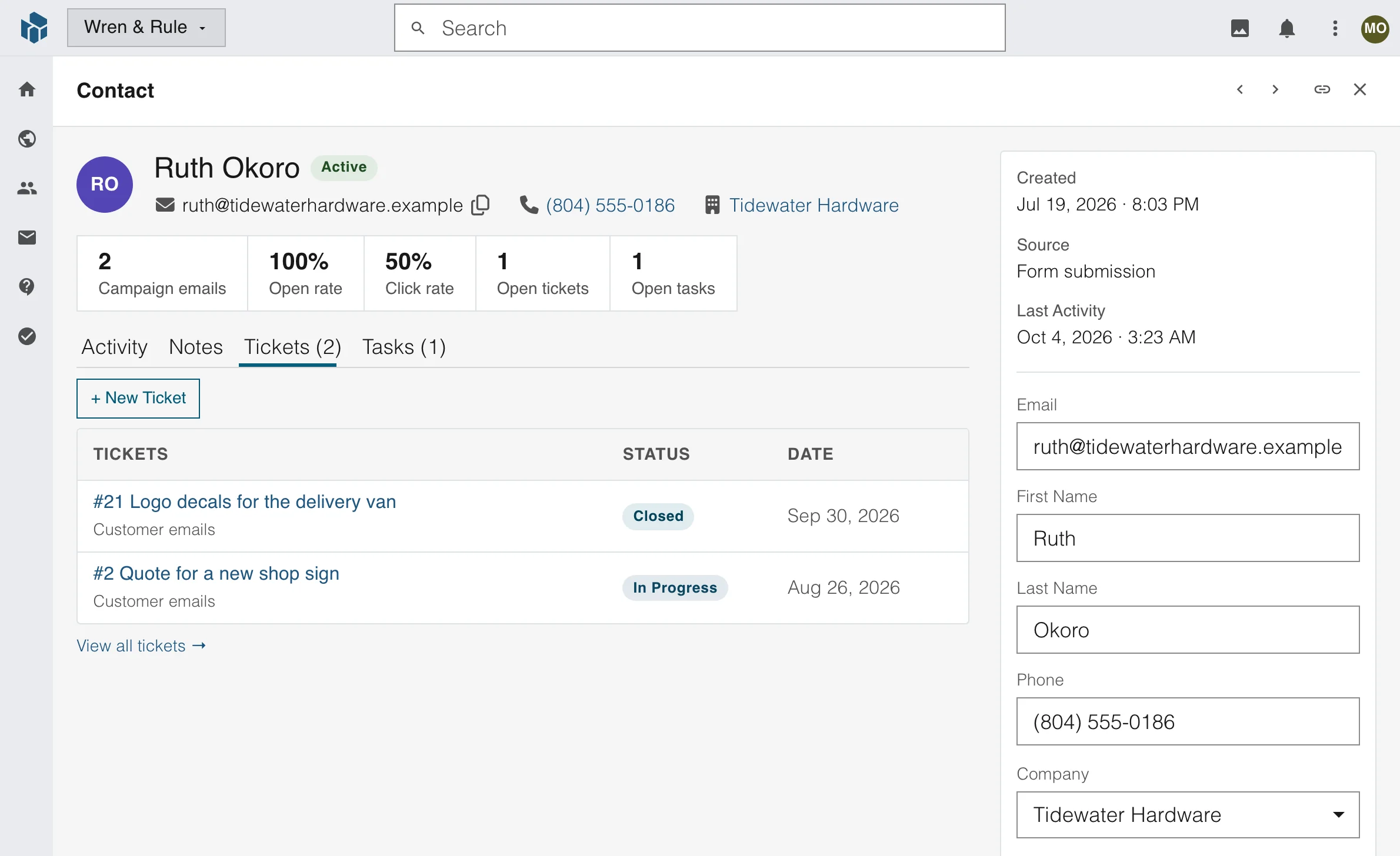
One timeline
Newsletters sent, opened and clicked, customer emails, tasks, notes and automations, newest first.
Notes for the team
Write a note on a person and mention a teammate with @, so the next person to open the record knows.
Start the next step here
Add a task or a customer email for the person without leaving their record.
Contacts
Find anyone fast
Search by name or email address. Then narrow the list to the people you mean.
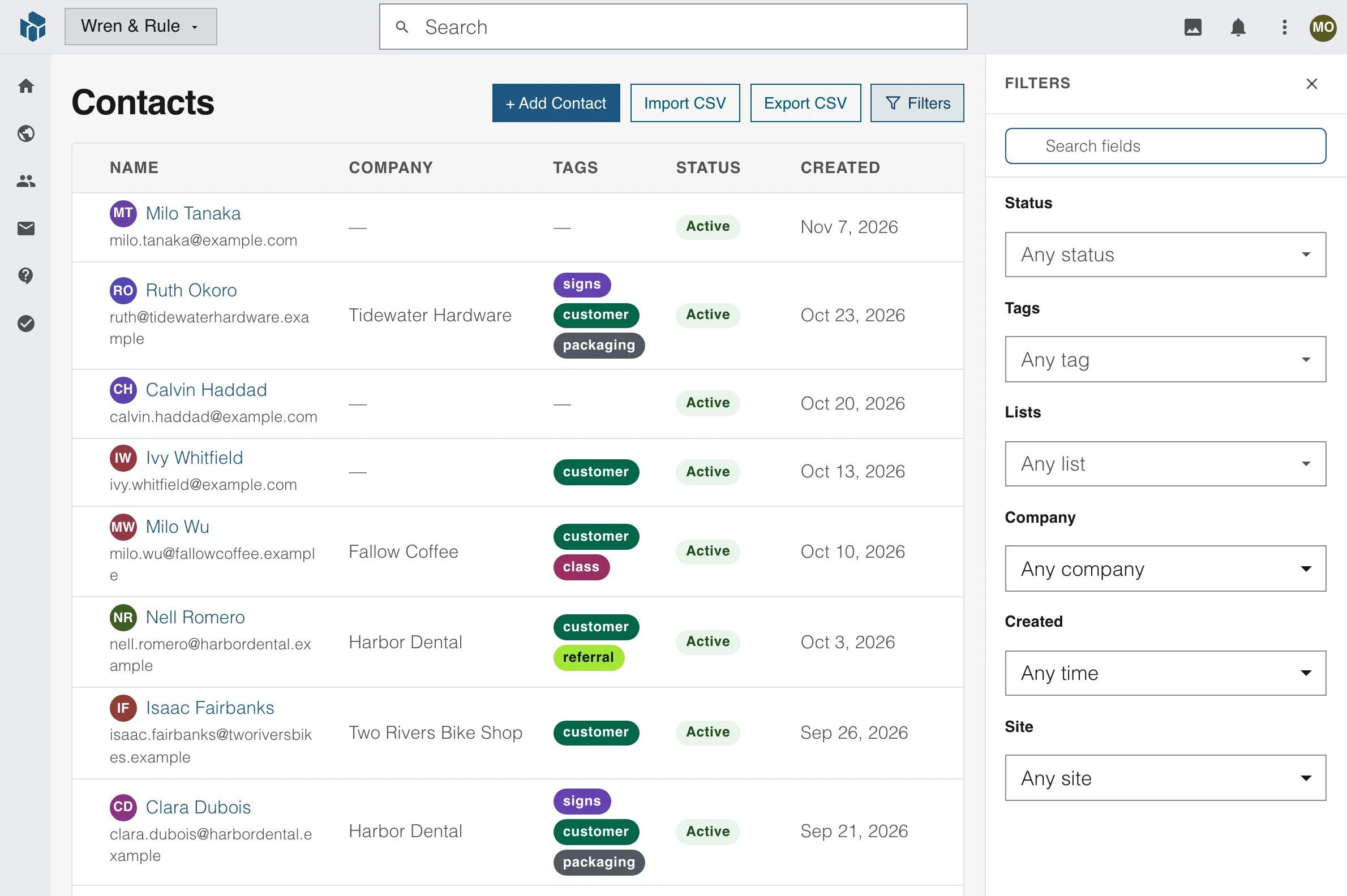
Search and filter
Filter by tag, list, company, status and the date a person was added, and by site when you have more than one.
Download what you see
The download holds exactly the people your filters show, in the order you see them.
Clear out in one go
Tick several people and delete them together.
Contacts
Keep it clean and fair
The same person sometimes arrives twice. Merge the two records, see every difference first and choose the value to keep for each one.
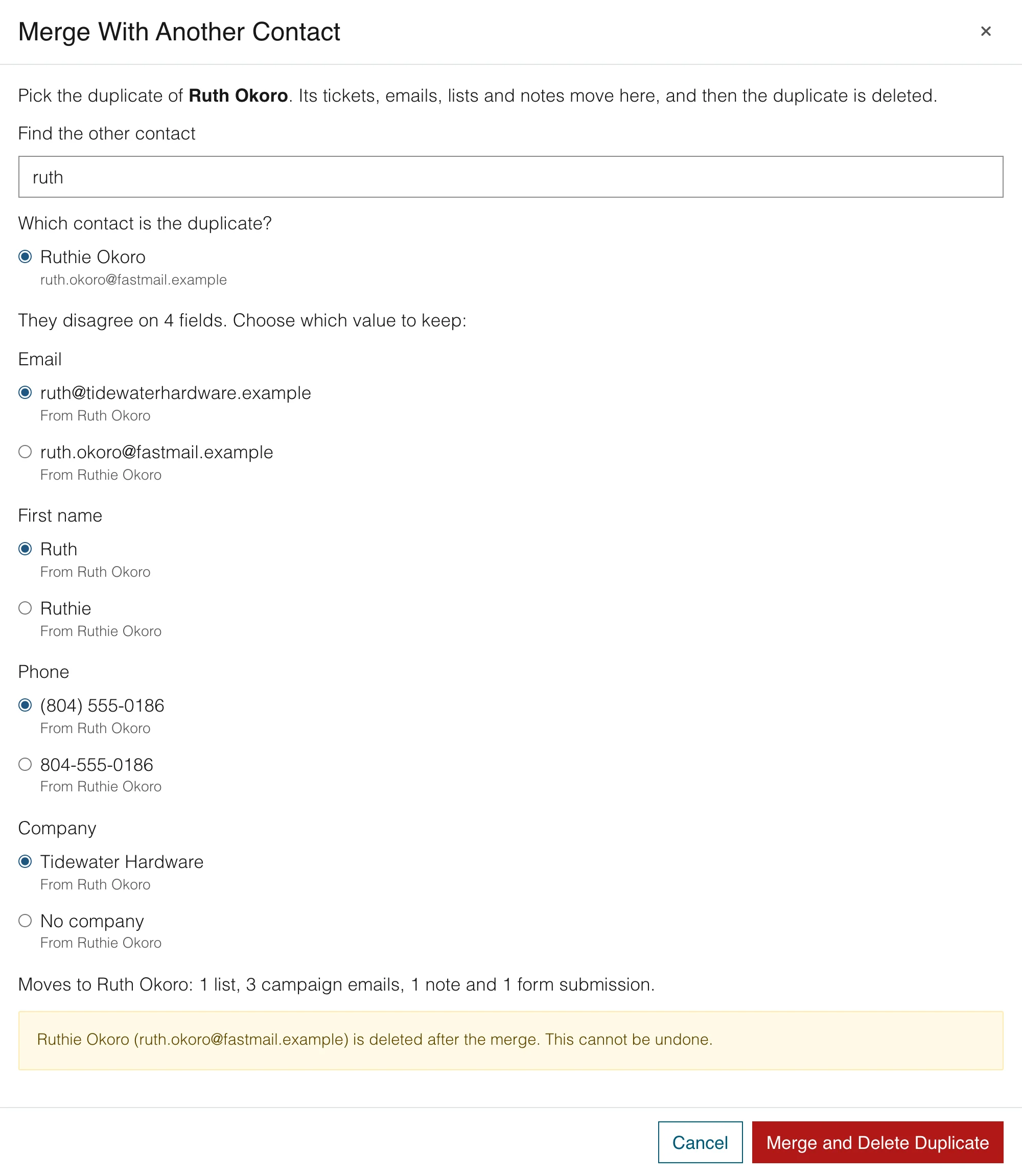
Merge with a preview
See what moves across, such as lists, newsletter history, notes and form entries, before you confirm.
Download one person's data
Download what you hold about one person as a file, when they ask for it.
Consent for each site
Each of your websites records when a person agreed to emails, so a yes on one site is not a yes for another.
One record, every product
From a form on your site to a task for your team
Contacts, customer emails and tasks share one list of people, so nobody copies a name from one place to another.
Someone fills in a form
Contacts
The form adds a contact
A form on your website adds the person, puts them on a list and gives them a tag. What they wrote sits on their record.
- Lists and tags set on the form
- A form fills in what you already know
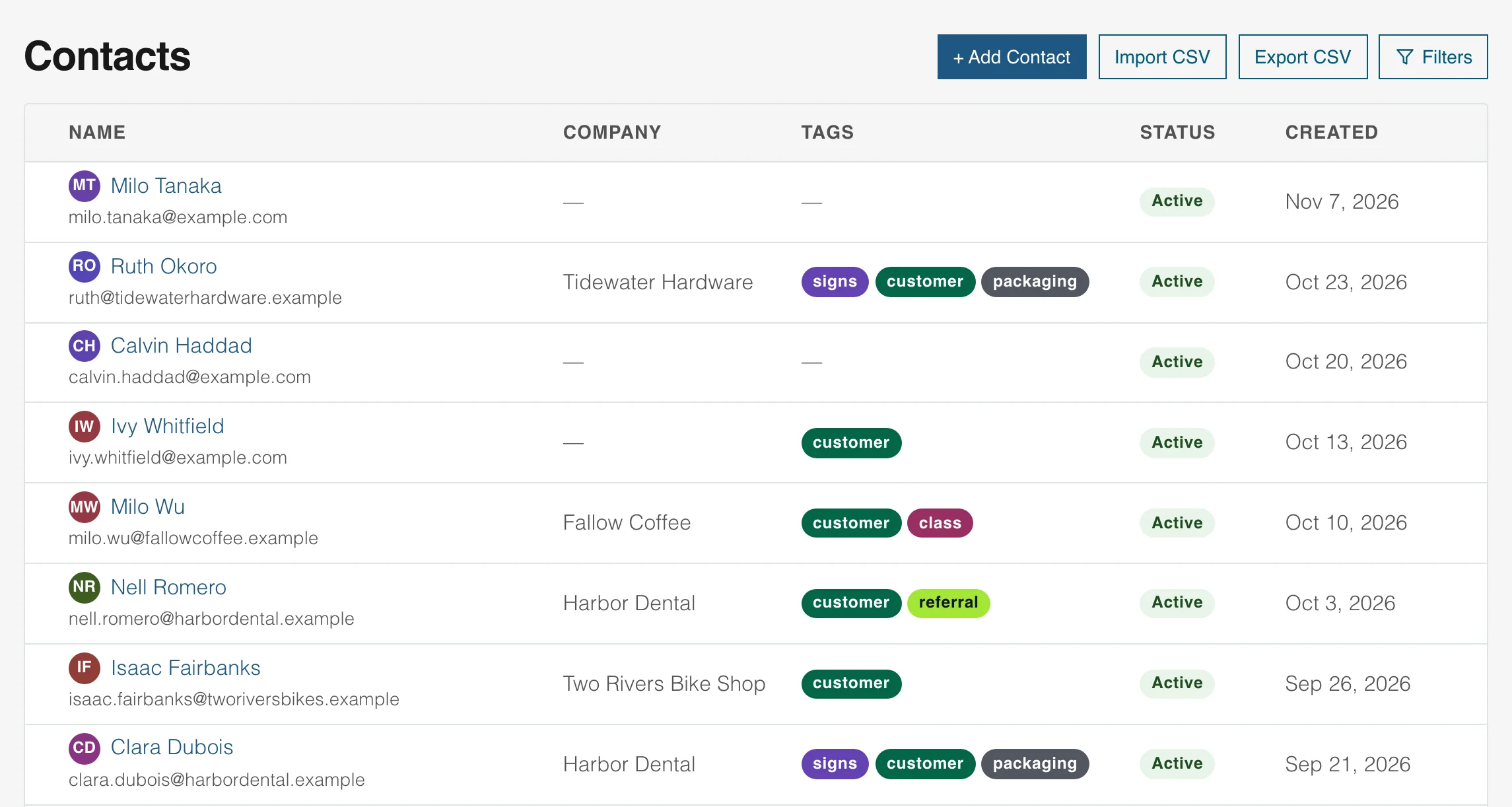
A customer writes to you
Helpdesk
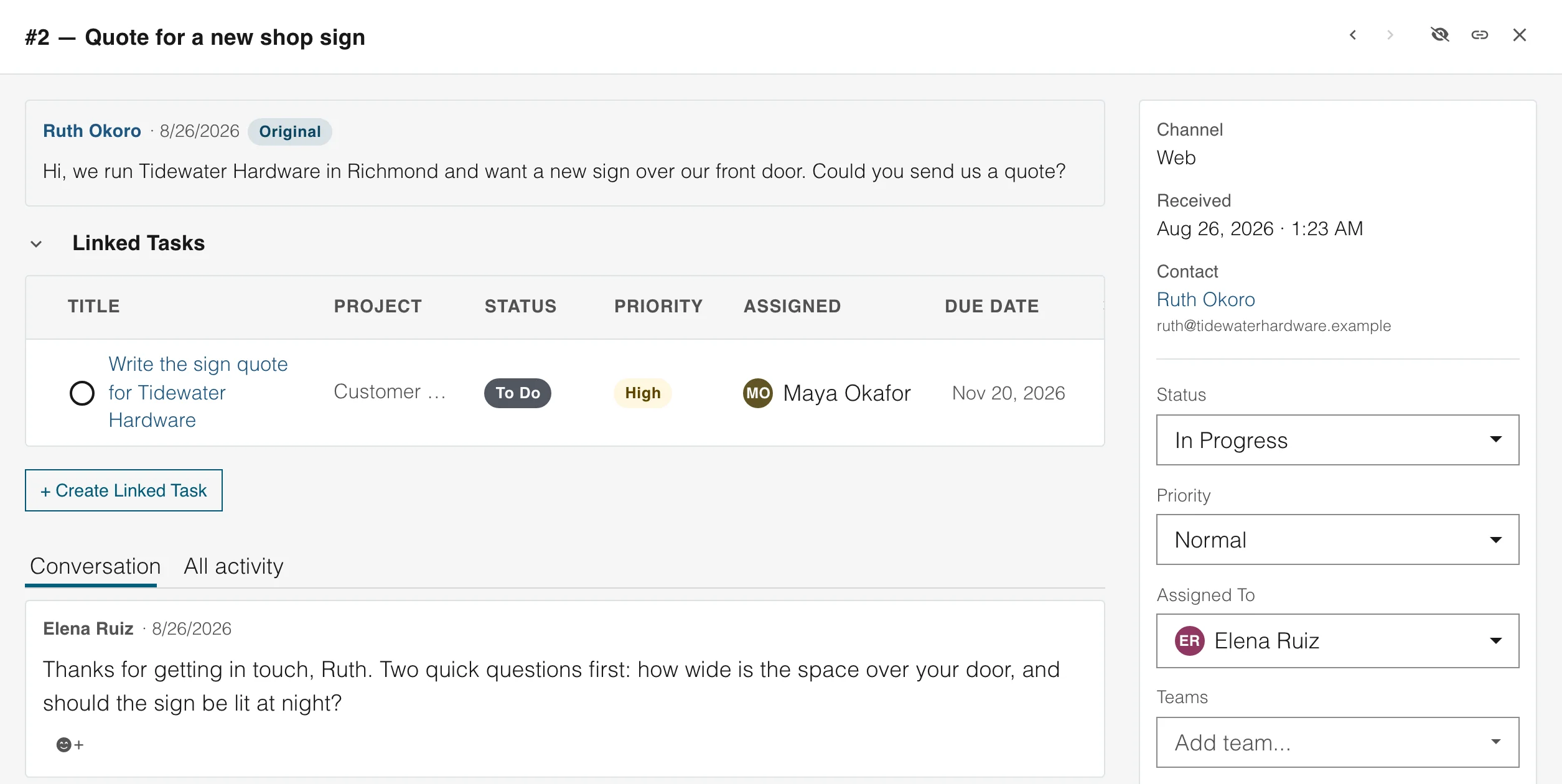
Their email joins the record
A customer email is linked to the person who sent it. Your team sees it on their record, beside everything else.
- Every email on the right record
- Assign it to a teammate
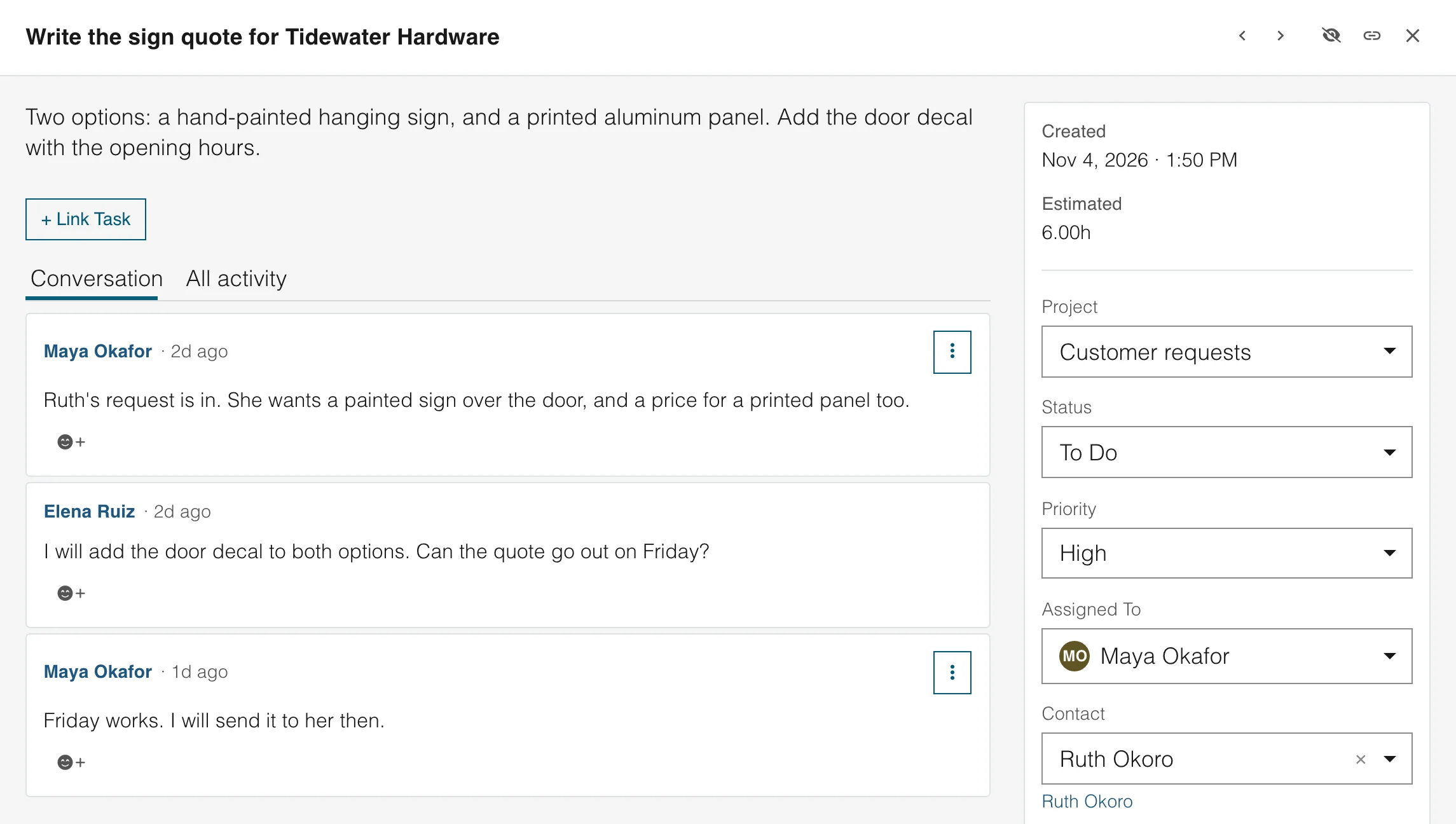
You assign the work
Tasks
A task is linked to the person
Make a task from the record, and it shows on the person's page. Open it from there, and the person is one click away.
- Tasks on the record
- Assign it and set a due date
Also built in
More that works from the same record
These are part of Contacts, so there is nothing to connect.
Site accounts are contacts
When a visitor makes an account on one of your sites, they appear in your contacts, with the site they joined.
Forms that know people
A form fills in the name and phone number of a returning visitor, so they type less.
Automations that start on a person
Start an automation when a contact is added, joins a list, gets a tag or sends a form.
Growth and sources
See how your list grows and where new contacts came from: a form, an import, customer emails or you.
Team notes
Notes on a person are visible to the team, with who wrote them and when.
Your own AI assistant
Connect your own AI assistant, and it can read and update your contacts, with your permission settings applied.
For the whole team
Everyone works from the same contacts
Invite everyone who helps. There are no per-seat charges, and each role decides who may see or change contacts.
FAQ
Contact management questions
Contact management software keeps the people and companies you deal with in one shared place. Each person has a record with their details, their company and what has happened with them, so your team stops keeping separate lists and spreadsheets.
WebNesting Contacts keeps people, companies and their history, with notes, tasks and newsletters on the same record. It has no deals and no sales pipeline.
Save your spreadsheet as a CSV file and import it. You match each column to a contact field, choose what happens to people already in your list, and can add a list and tags to everyone you bring in.
Yes. You can start with a short list and a few fields. Everyone you invite works from the same contacts, and there are no per-seat charges.
Merge two records of one person after a preview that shows every difference. Filter by tag, list, company or date added to find the people to fix, and delete several at once.
Every person has a name, an email address, a phone number, a company, a status and tags. You can add fields of your own, such as the kind of project, who referred them or the date of the next check-in. Your team can also write notes on the record.
Yes. A form on your website can add a person to your contacts, put them on a list and give them a tag. A visitor who makes an account on one of your sites also appears in your contacts, with the site they joined.
Yes. A company has a record of its own, and each person can belong to one. When you import a spreadsheet with a company column, WebNesting makes any company that is not in your list yet. Filter by company to see everyone who works there.
Yes. Each record shows whether the person is subscribed to your newsletters, waiting to confirm or unsubscribed, and whether they get your automatic customer emails. Consent is kept for each of your sites, so agreeing on one site signs nobody up on another.
Yes. An email automation can start when a person is added, joins a list, gets a tag or sends one of your forms. The record then shows each email the person was sent, opened and clicked.
Everyone you invite can work from the same contacts, and each role decides who may see or change them. Notes on a person show who wrote them and when.
Yes. Download your contact list as a file, with its email, names, phone, company, status, tags, sites and date added. You can also download everything we hold about one person.
Keep every customer in one place
One record for every person, shared by your whole team, and filled in by your website, newsletters, customer emails and tasks.