Task management
Task management. Everyone sees the same work.
Team task management for businesses of any size. Put each client project on a board, a list, a timeline or a calendar. Everyone sees the same tasks, who has them and when they are due.
- No per-seat charges
- Unlimited teammates
Task management
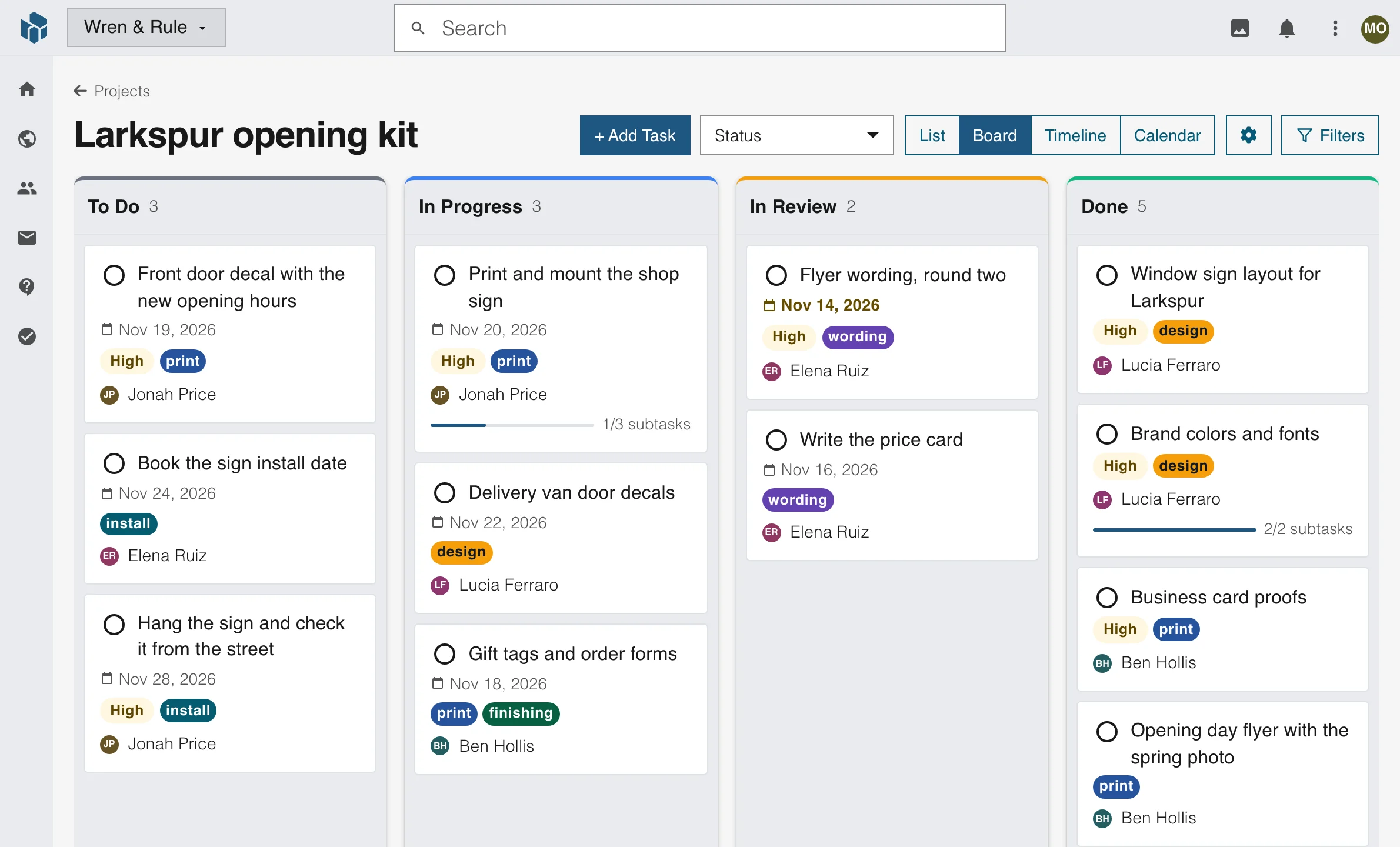
A kanban board for each project
Every task is a card in a column such as To Do, In Progress, In Review or Done. Drag a card to the next column when the work moves, and the whole team sees it at once.
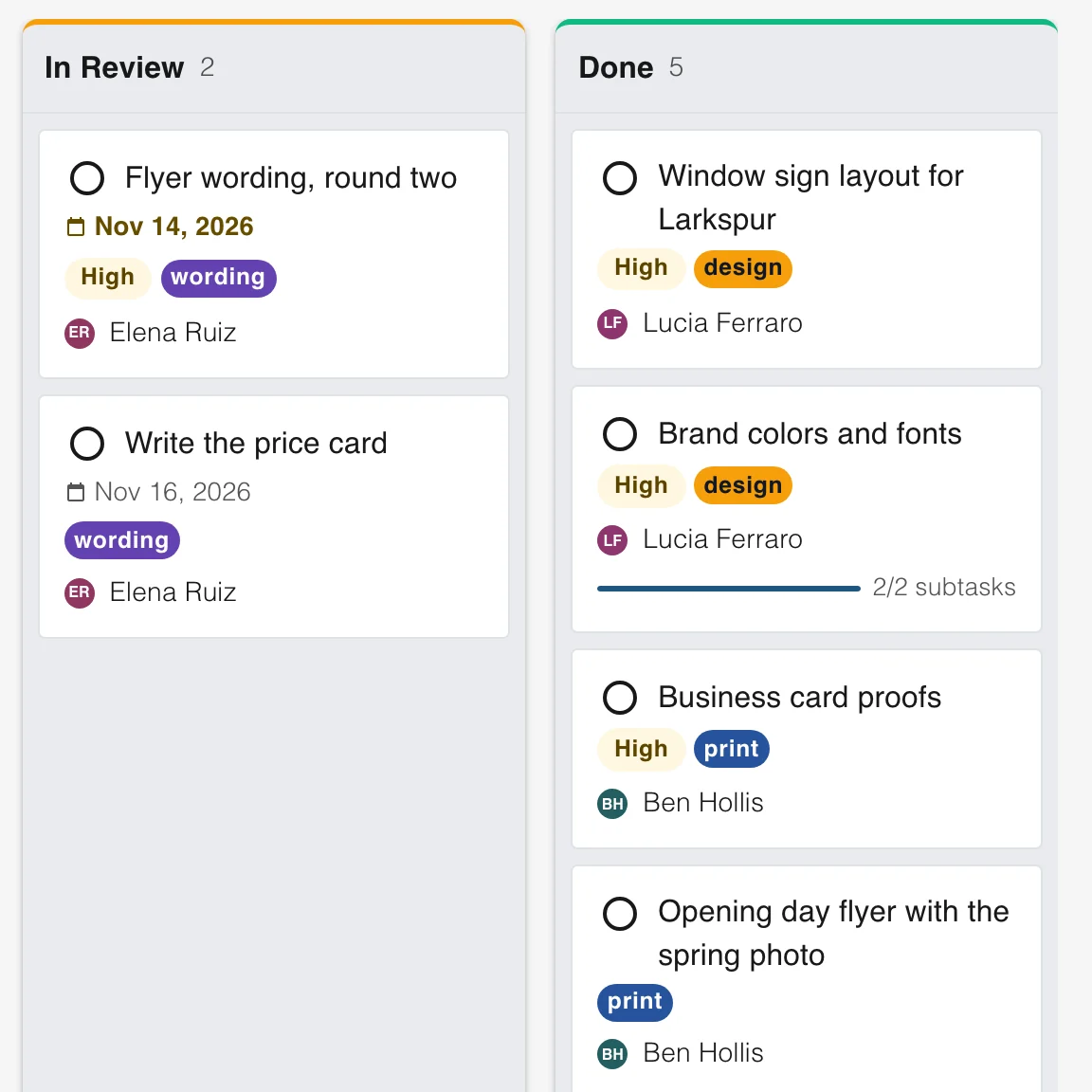
Drag a card to move it
Move a task between columns, and its status changes with it.
Tags and priority on the card
See what is urgent, what kind of work it is and who has it, without opening the task.
Progress from the subtasks
A card with subtasks shows a bar that fills as each one is done.
Task management
The same project as a list
Some people work best from a list. The list view groups a project by status and shows each task with its priority, owner and due date on one line.
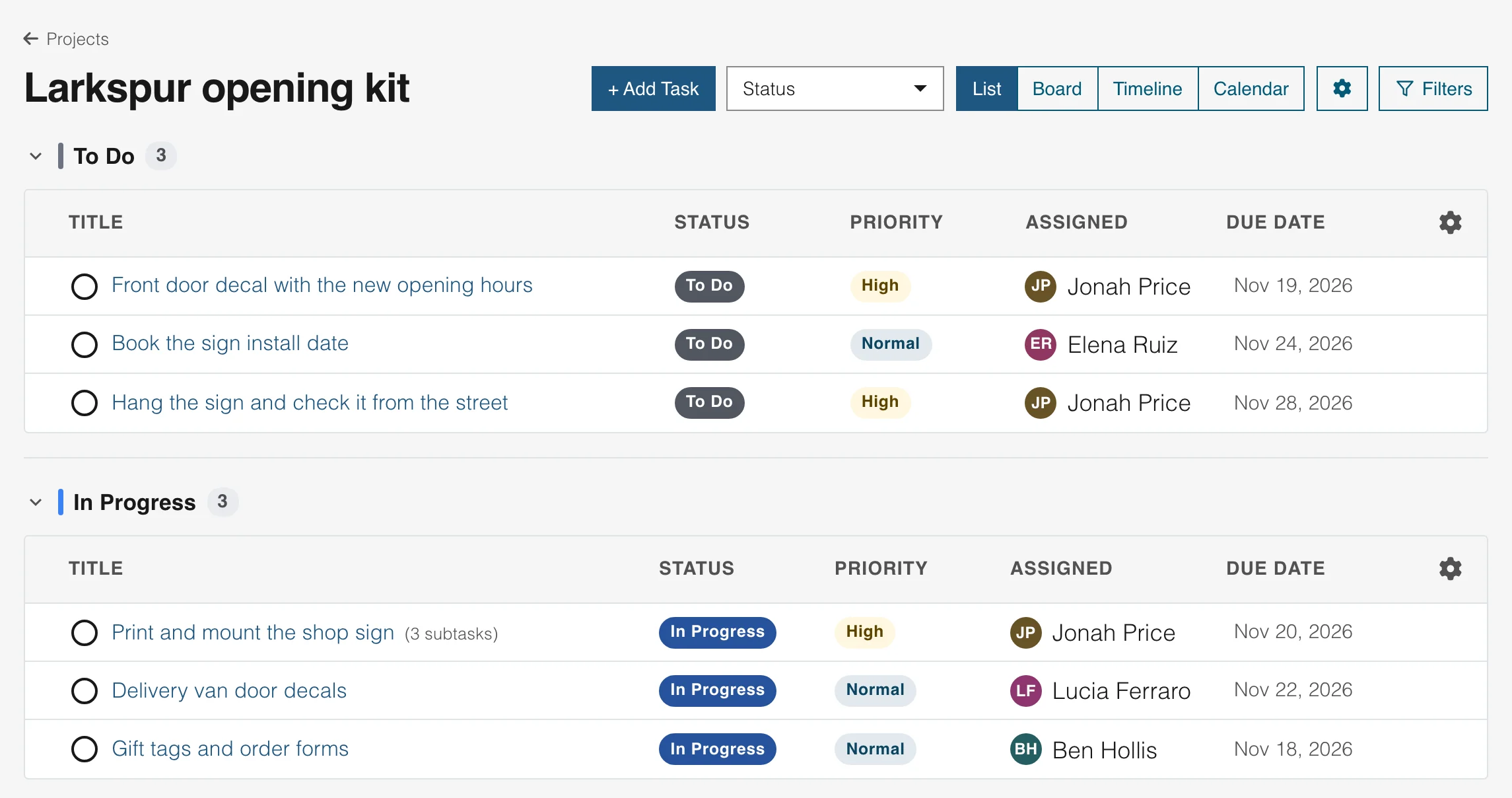
Grouped by status
Each status is its own group, so you see what is waiting and what is moving.
Read it at a glance
Priority, owner and due date sit in columns, so a late task is easy to spot.
Subtasks counted
A task with subtasks says how many it has.
Task management
A timeline for the whole project
See every task as a bar from its start date to its due date, with milestones across the top. You see what overlaps, what runs long and what the team finishes this week.
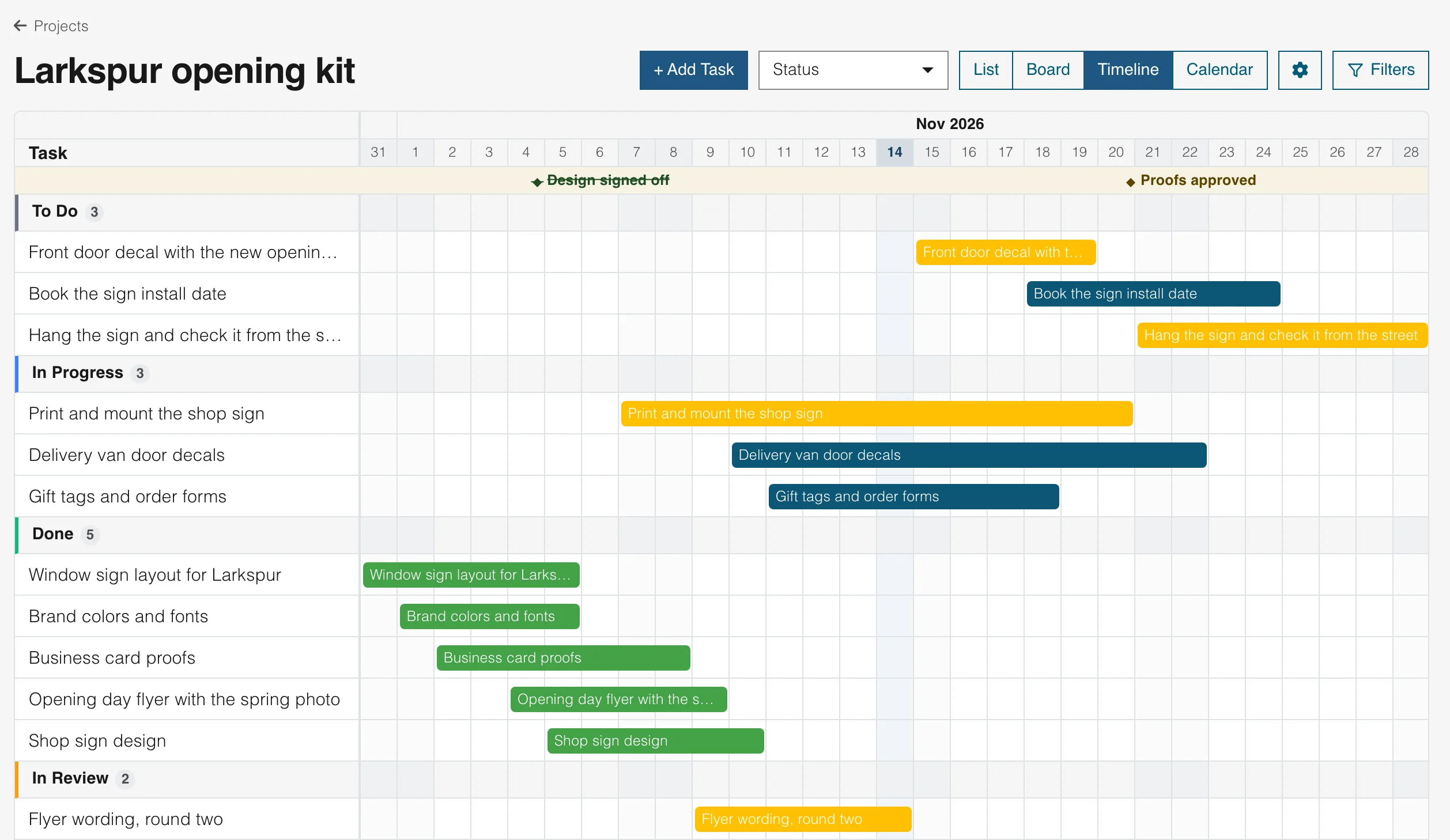
Milestones along the top
Mark the days that matter, such as sign-off and launch, and tick them off when they are done.
Color shows the state
Open work is colored by priority. Finished work turns green.
Today is marked
The current day stands out in the grid, so you see at once what is behind.
Task management
A calendar of what is due
Switch to a month view to see what lands on each day. Tasks sit on their due dates and milestones on theirs, so you see a busy week before it arrives.
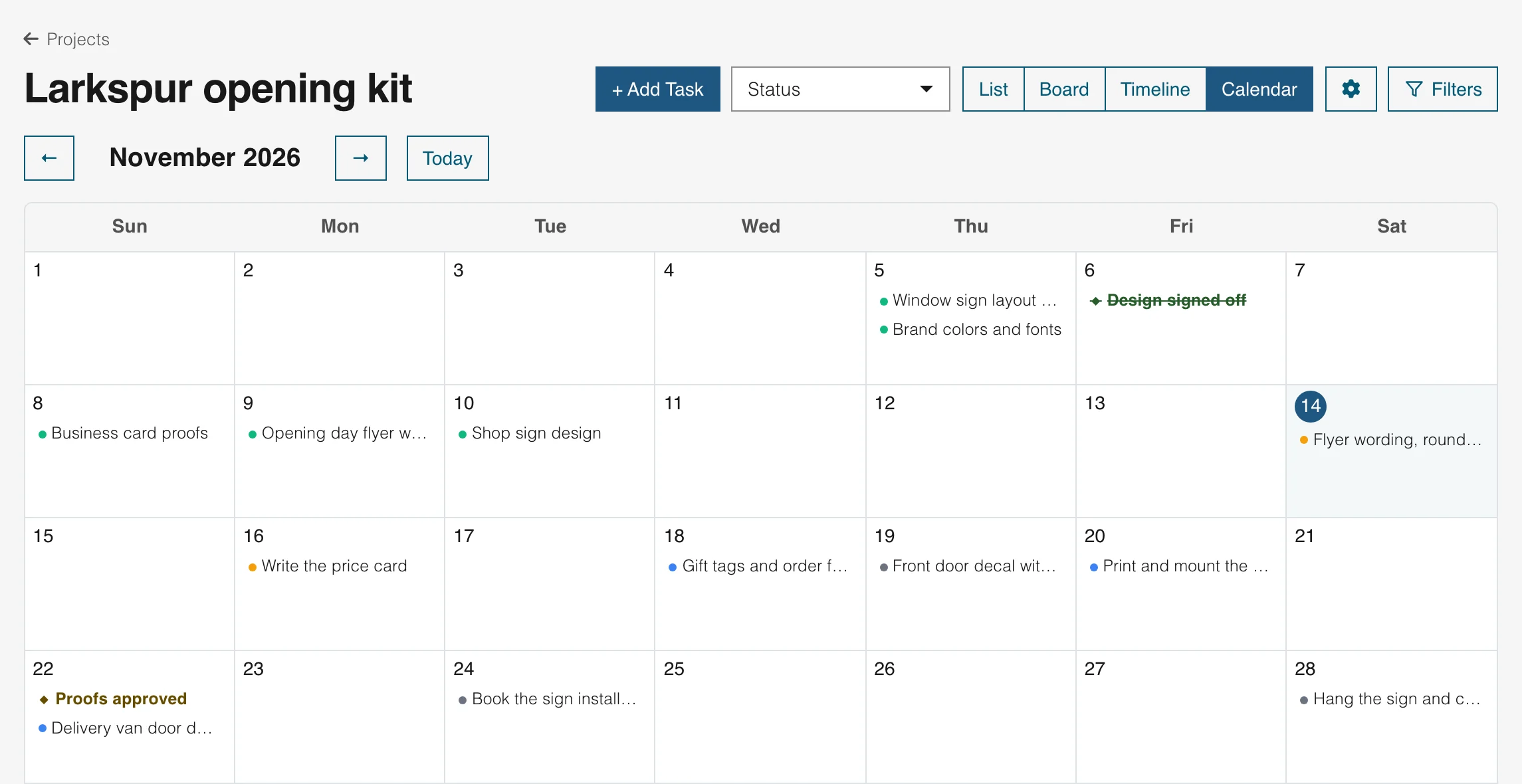
Month by month
Use the arrows to move through the months, and press Today to come back.
Milestones on their days
Each milestone shows on its date, beside the tasks due that day.
A dot for each status
The color of a dot tells you whether the task is waiting, moving or done.
Task management
Break a task down, and say what it waits on
Split a large task into subtasks with their own owners and dates. Give it an estimate in hours. Link it to the tasks it waits on and the tasks that wait on it.
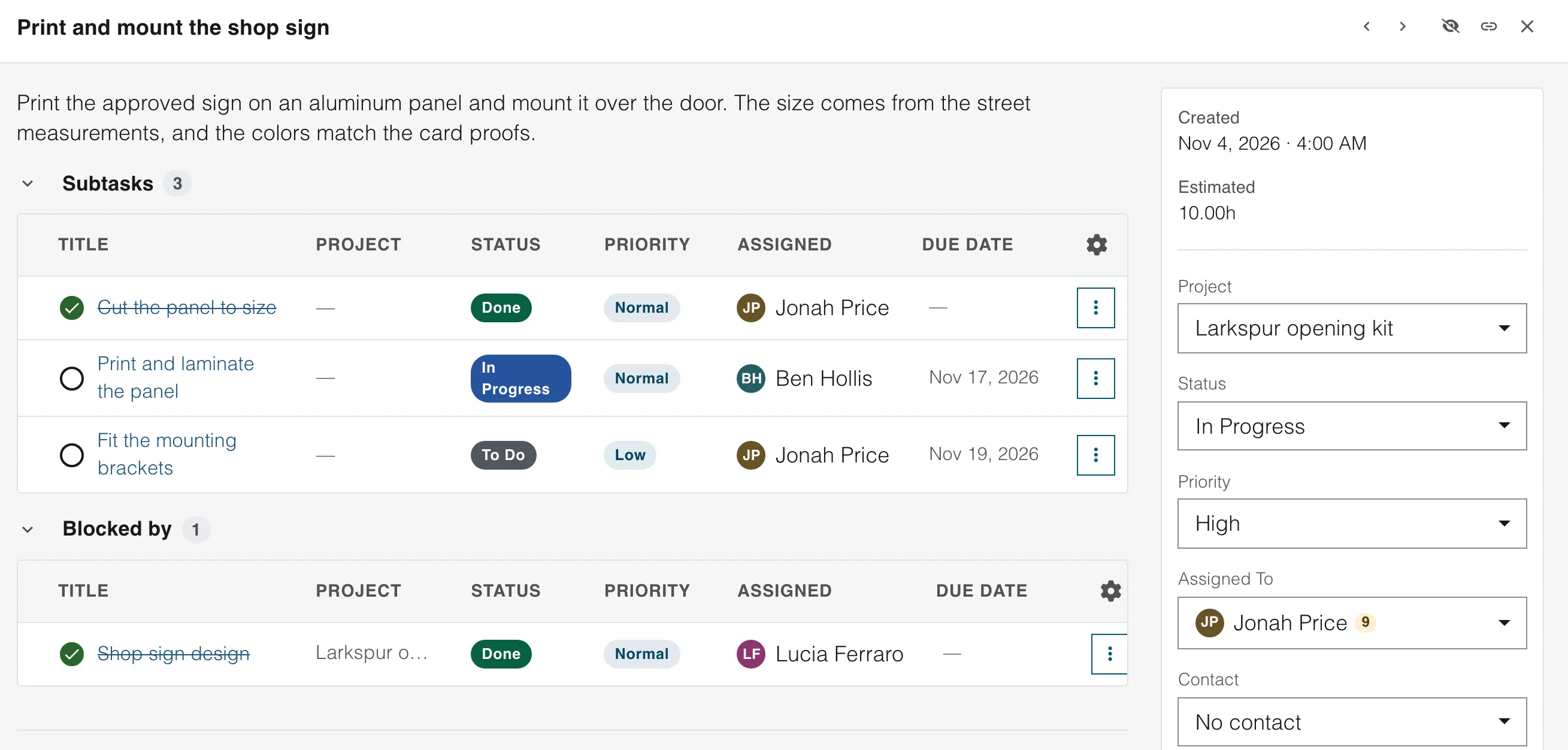
Subtasks with their own owners
Each subtask has its own status, priority, owner and due date.
Estimates in hours
Say how long a task should take, then compare it with the time tracked.
Tasks that wait on each other
Tie tasks together, so nobody starts work that waits on something else.
Task management
Track time, then see where it went
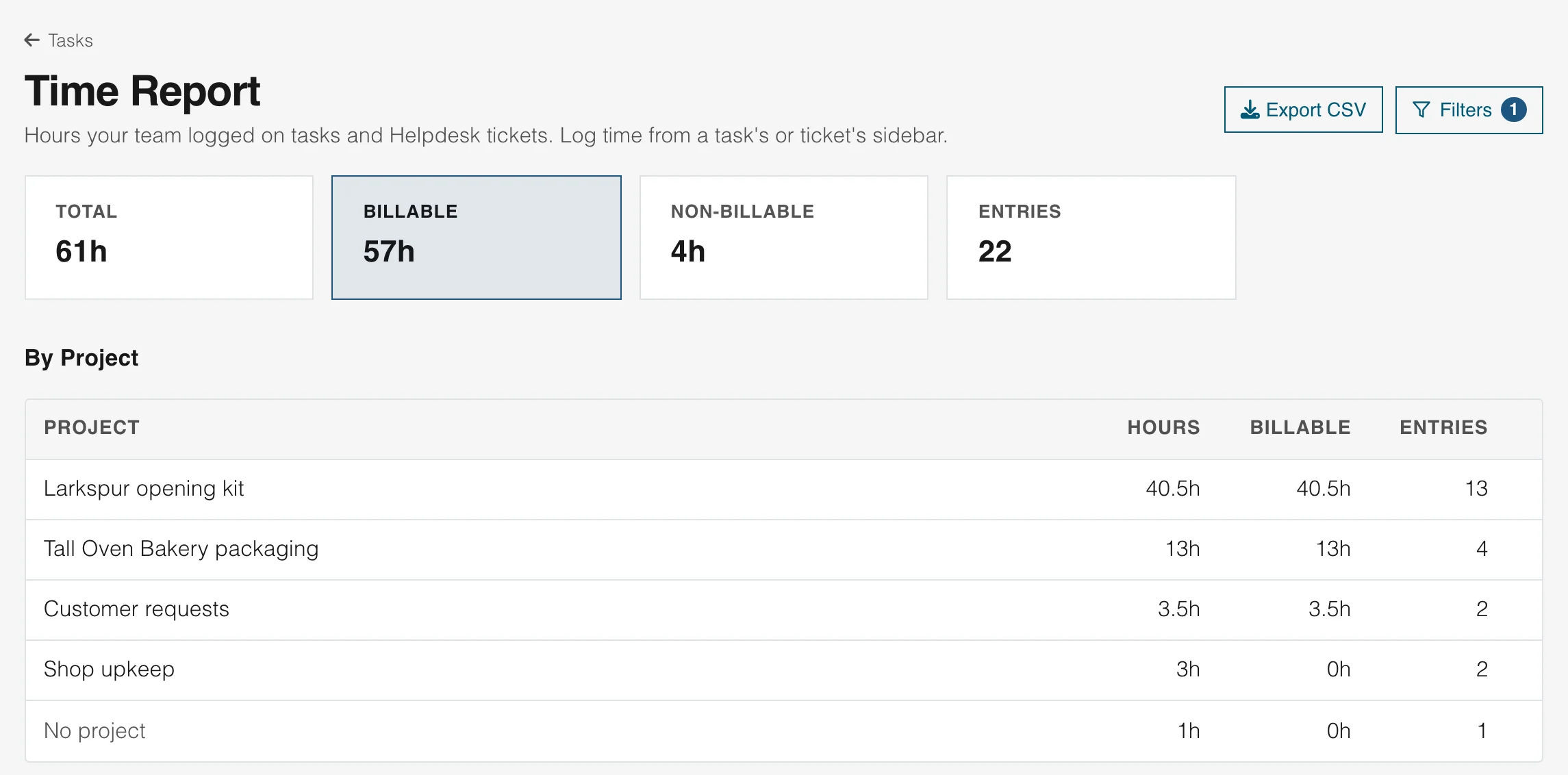
Start a timer on a task, or log the hours afterwards. The time report adds them up by project and by person, so you know what a piece of client work took.
A timer or a log
Start and stop a timer, or add the hours you worked afterwards.
Billable or not
Mark an entry as billable, and see the billable hours apart from the rest.
Download it as a CSV
Export the report to a spreadsheet for your client bills.
Task management
Everything assigned to you, in one place
Open My Work to see your tasks from every project, grouped by project and sorted by due date. You do not need to visit each board to find what is yours.
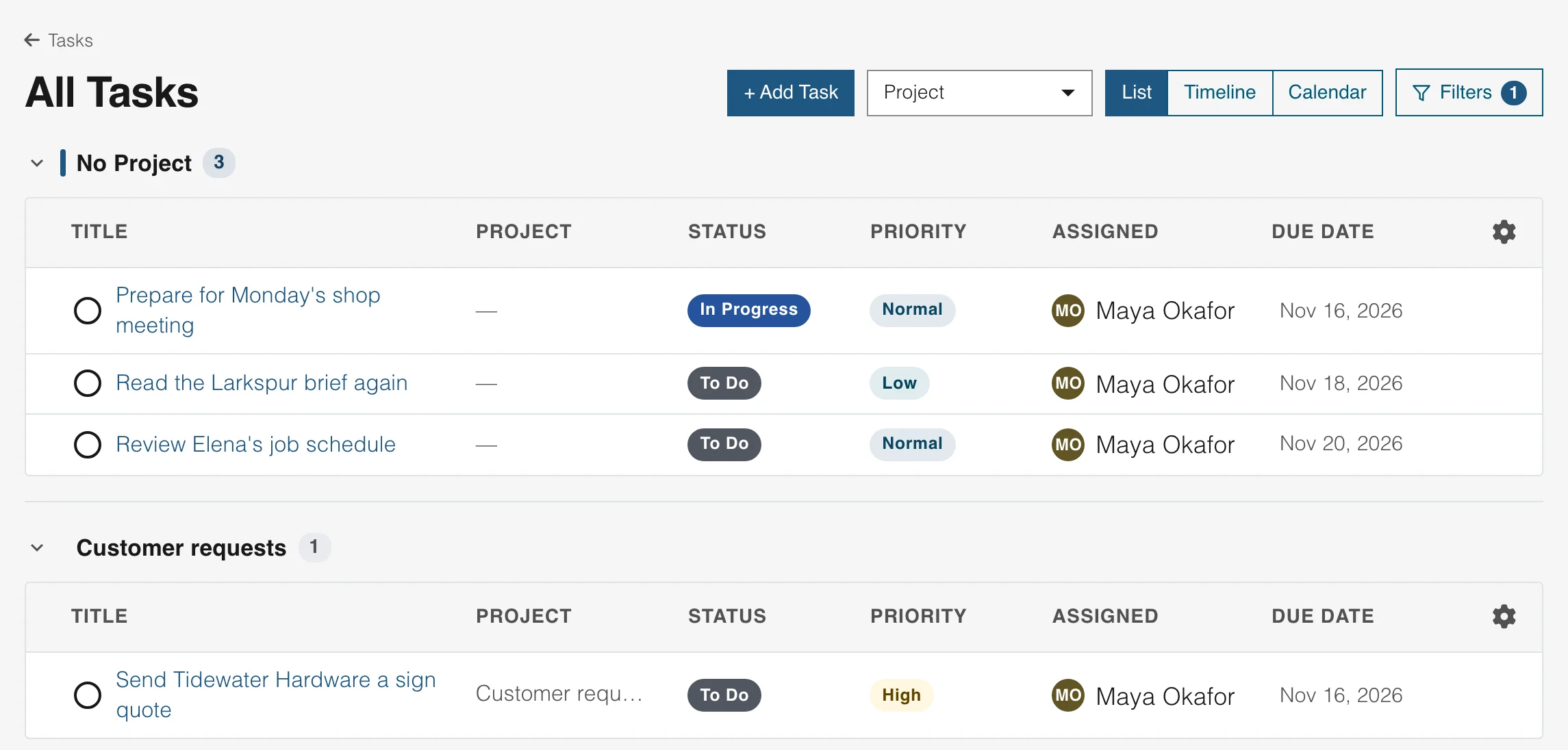
Only your tasks
The list is filtered to what is assigned to you, across all your projects.
Personal tasks too
Keep a task that belongs to no project, such as a reminder for Monday.
Mention a teammate
Use @ in a comment to bring in a teammate or a whole team.
Built in
What a team needs to work together
These details are part of every project. Nothing to install.
Teams
Put a team on a project or a task. Everyone in it can find the work, and you can mention the whole team in a comment.
Watch what matters
Follow a task, and get a notification when its status changes or someone comments.
Fields of your own
Add custom fields to a project, so each task holds what your work needs, such as a client or a budget.
Clone a project
Start the next client project from the last one, with its structure already in place.
Tags and priority
Mark what kind of work a task is and how urgent it is, and see both on the board.
Tasks tied to people
Link a task to a contact, and see it on that contact's record.
Email to task
A customer email becomes a task
When a customer asks for something, turn their email into a task for the team. The email, the task and the customer stay linked, so the request is never lost.
A customer emails you
Helpdesk
Create a task from the email
Click the <strong>Create Linked Task</strong> button on any customer email. The task appears under the email, so your team sees the work. The customer never sees it.
- The email and the task stay linked
- Assign it to the right teammate
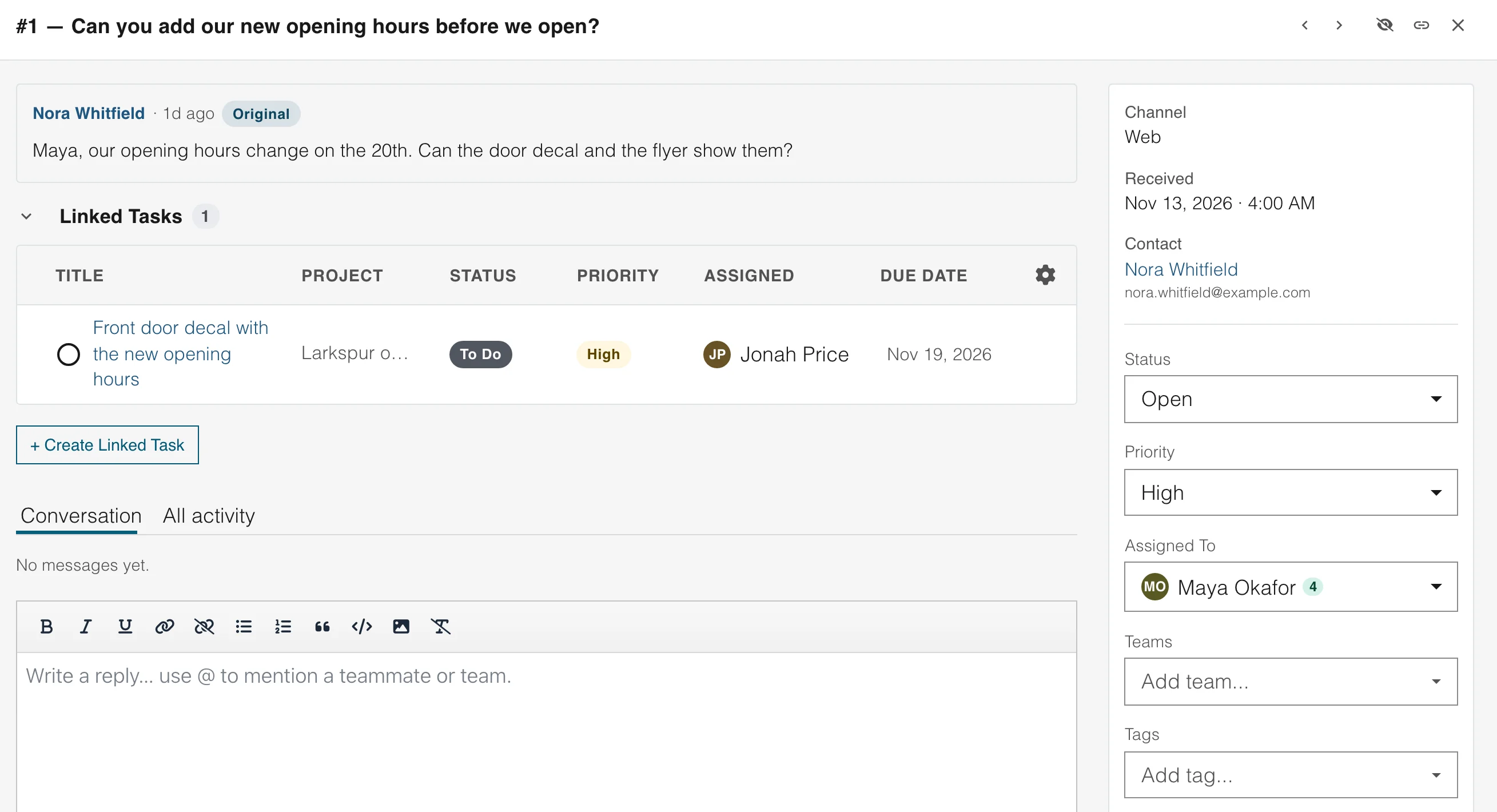
The team picks it up
Tasks
The task carries the customer with it
The task shows who asked, with an owner, a due date and an estimate. Your team talks about it in the comments.
- A contact on every task
- Comments and mentions
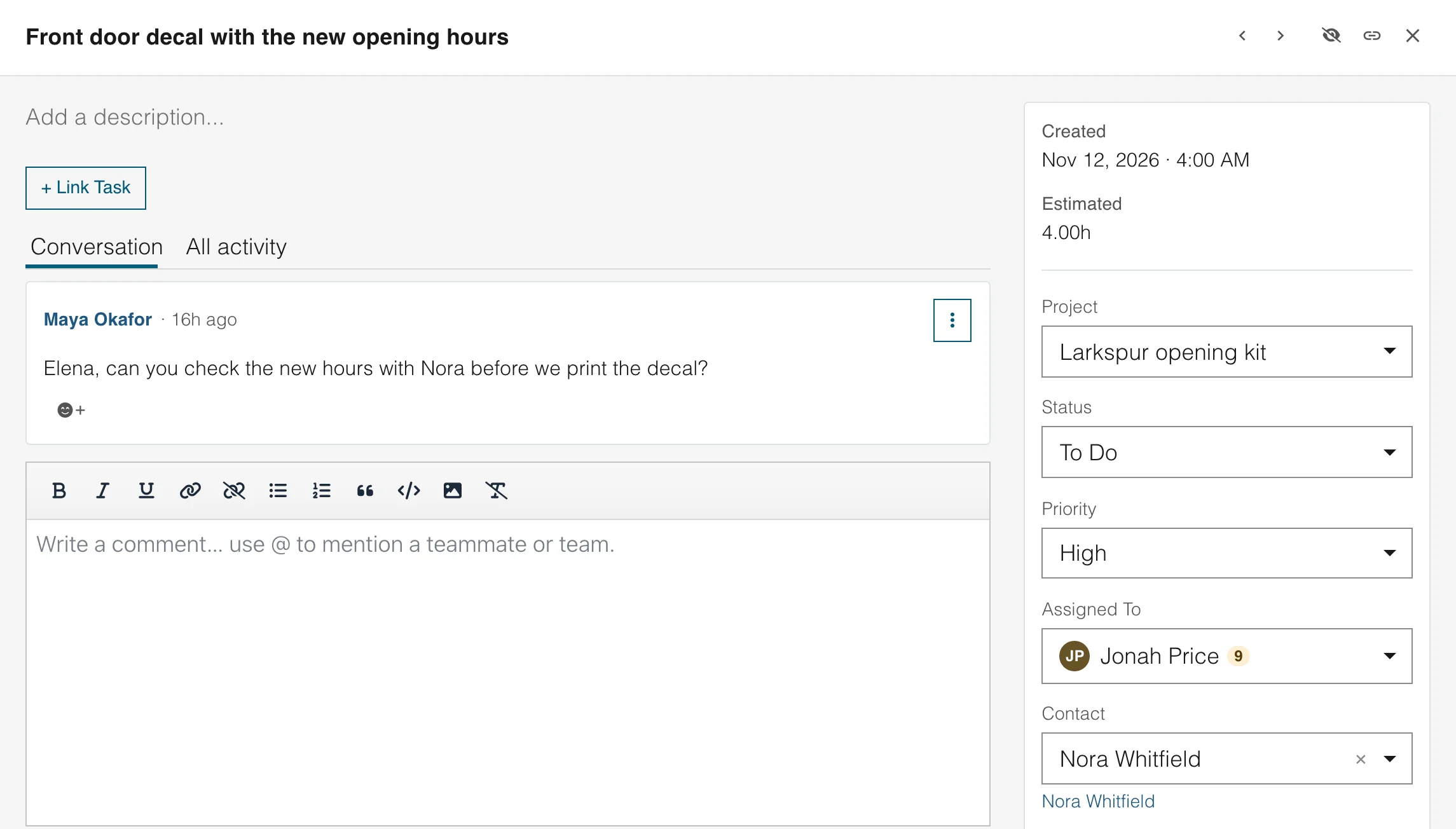
You see the whole story
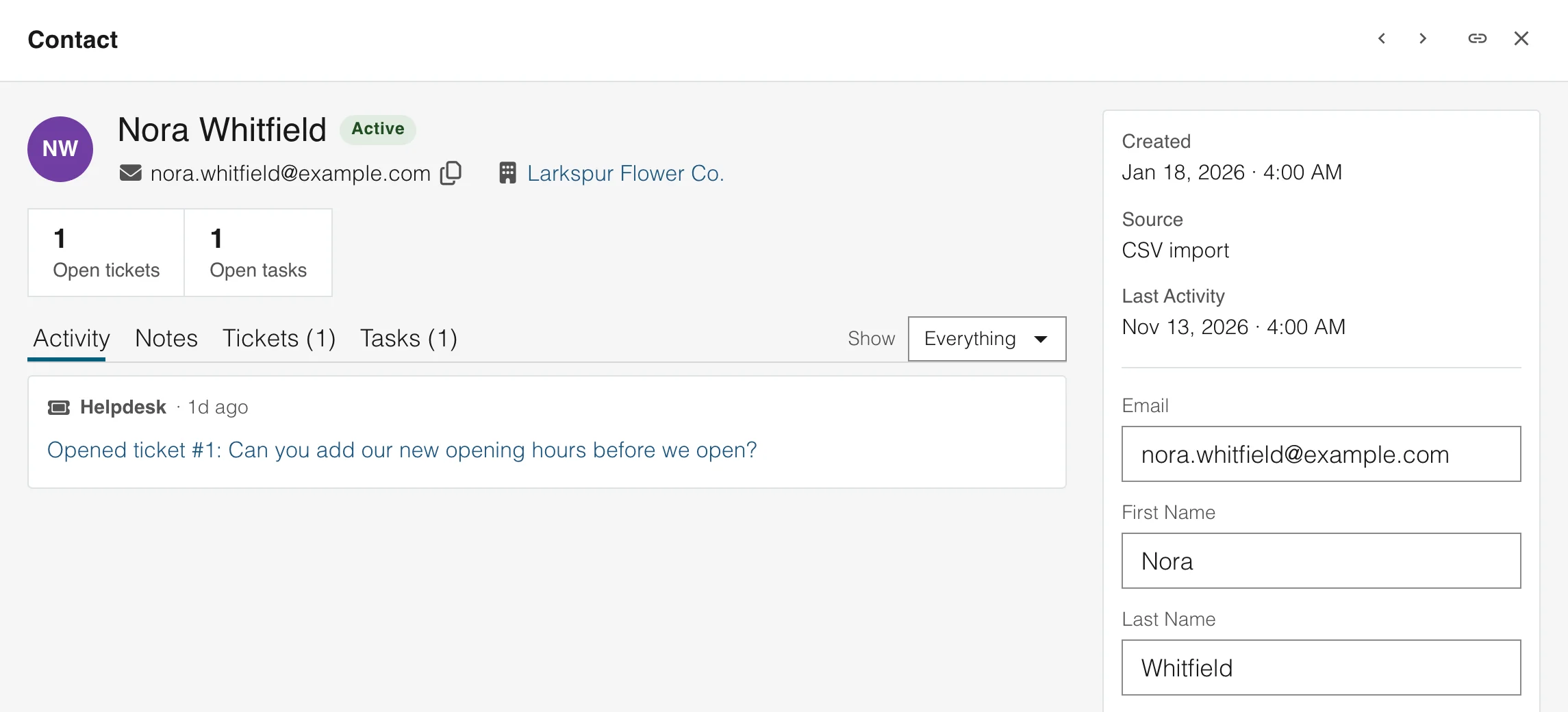
Contacts
It shows on the customer's record
Open the contact to see their emails and their open tasks together. You know what you promised before you reply.
- Open tasks and emails at the top
- One history for each customer
Your whole team
Add everyone. There are no per-seat charges.
Invite the designer and the freelancer. Each teammate gets a role that decides what they can change, and nobody costs extra.
FAQ
Task management questions
Task management is how a team organizes, assigns and follows its work. Each piece of work is a task with an owner, a due date and a status, so everyone sees what is done, what is moving and what is late.
Project management looks after a whole project: its goals, its dates and its budget. Task management follows the single pieces of work inside it. In WebNesting a project holds the tasks, and you see them as a board, a list, a timeline or a calendar.
Make a project, add your first tasks and invite your team. Open the board to move work along, or the list to read it. To start a new project from an old one, clone it.
A team needs one place where everyone sees the same tasks, who owns them and when they are due. Subtasks, comments, mentions and a view for each way people like to work help too.
Yes. Add subtasks, each with its own status, priority, owner and due date. The card on the board shows how many are done, and the task keeps an estimate in hours beside the time you log.
Yes. Set a task to wait on another, and each task lists the tasks it waits on and the tasks that wait on it. On the timeline every task is a bar from its start date to its due date, with the milestones above.
Open My Work. It lists everything assigned to you across every project, grouped by project, so you start the day from one list. Watch a task to get a notification when its status changes or someone comments.
Yes. Start a timer on a task or log your hours afterwards, and mark each entry as billable or not. The time report adds the hours up by project and by person, and you can download it as a CSV.
Use the board to move work along, the list to read every detail, the timeline to see how tasks overlap and the calendar to see what is due on each day. All four show the same tasks, so people can pick the view they like and still stay in step.
Yes. Link a task to a contact, and the task shows on that contact's record. When a customer emails you, turn the email into a linked task for your team. This is email to task: the email, the task and the contact stay connected.
No. Your whole team is included, with no per-seat charges.
Run your team's work with WebNesting
Put every task on a board, a list, a timeline or a calendar, and add Website builder, Email marketing or Helpdesk when you need them. Your whole team is included.