Helpdesk
Helpdesk. One team inbox for every customer email.
A helpdesk and shared inbox for businesses of any size. Your team answers customer emails from one place, and everyone sees who has each one.
No seat fees. Unlimited teammates.
Helpdesk
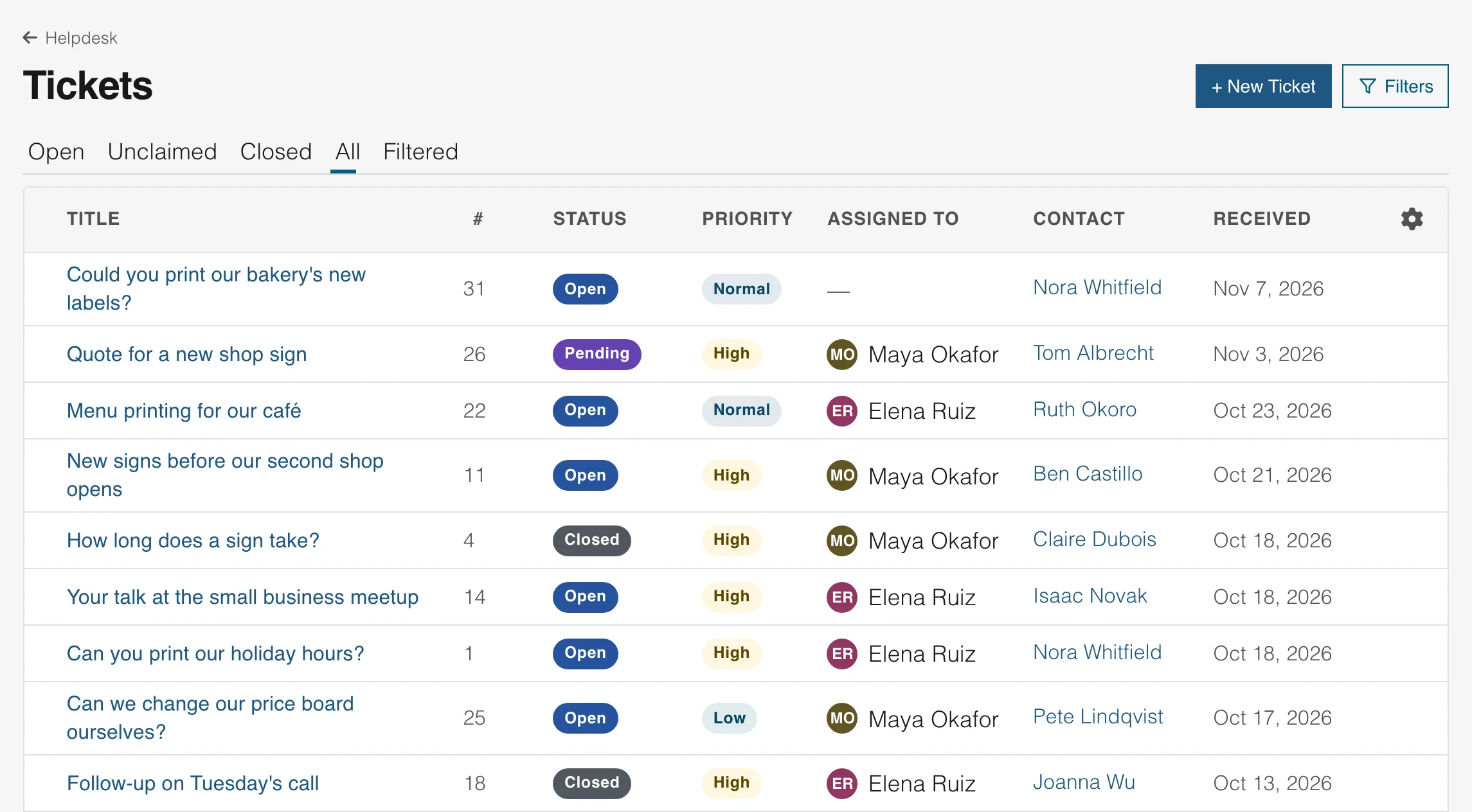
See who is answering what
Give each customer email to a teammate, or to a whole team. The name shows in the inbox and on the email, so nobody replies twice.
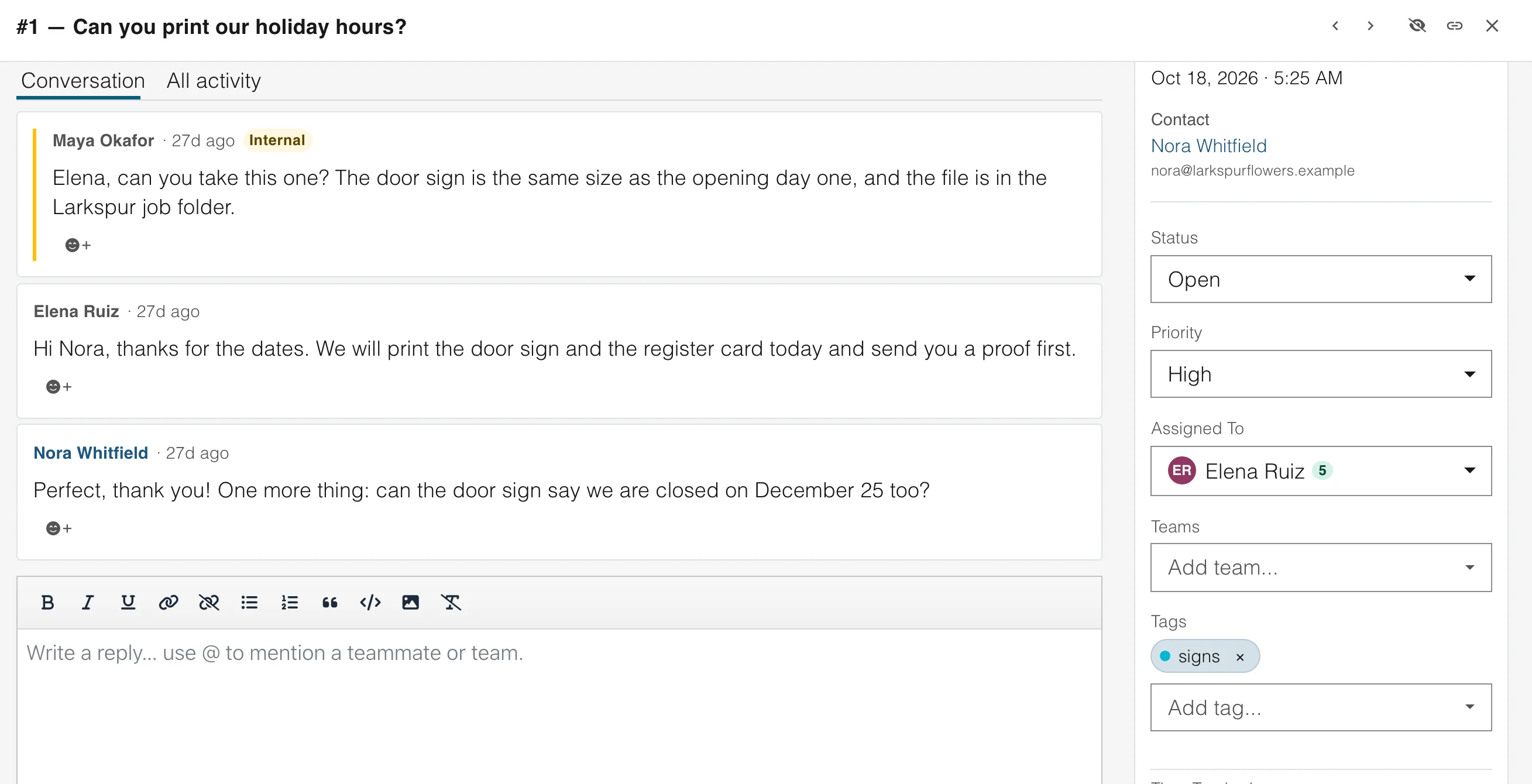
A teammate or a team
Assign an email to one person, or to one or more teams, and change it any time.
An Unclaimed tab
One click shows the emails nobody has picked up yet.
Tags to sort by
Add tags such as onboarding or quote and find them again later.
Helpdesk
Reply, set the status, keep private notes
Answer the customer in the email thread. Tick "Internal note" and the same box saves a note only your team can read, such as a check you made or a question for a colleague.
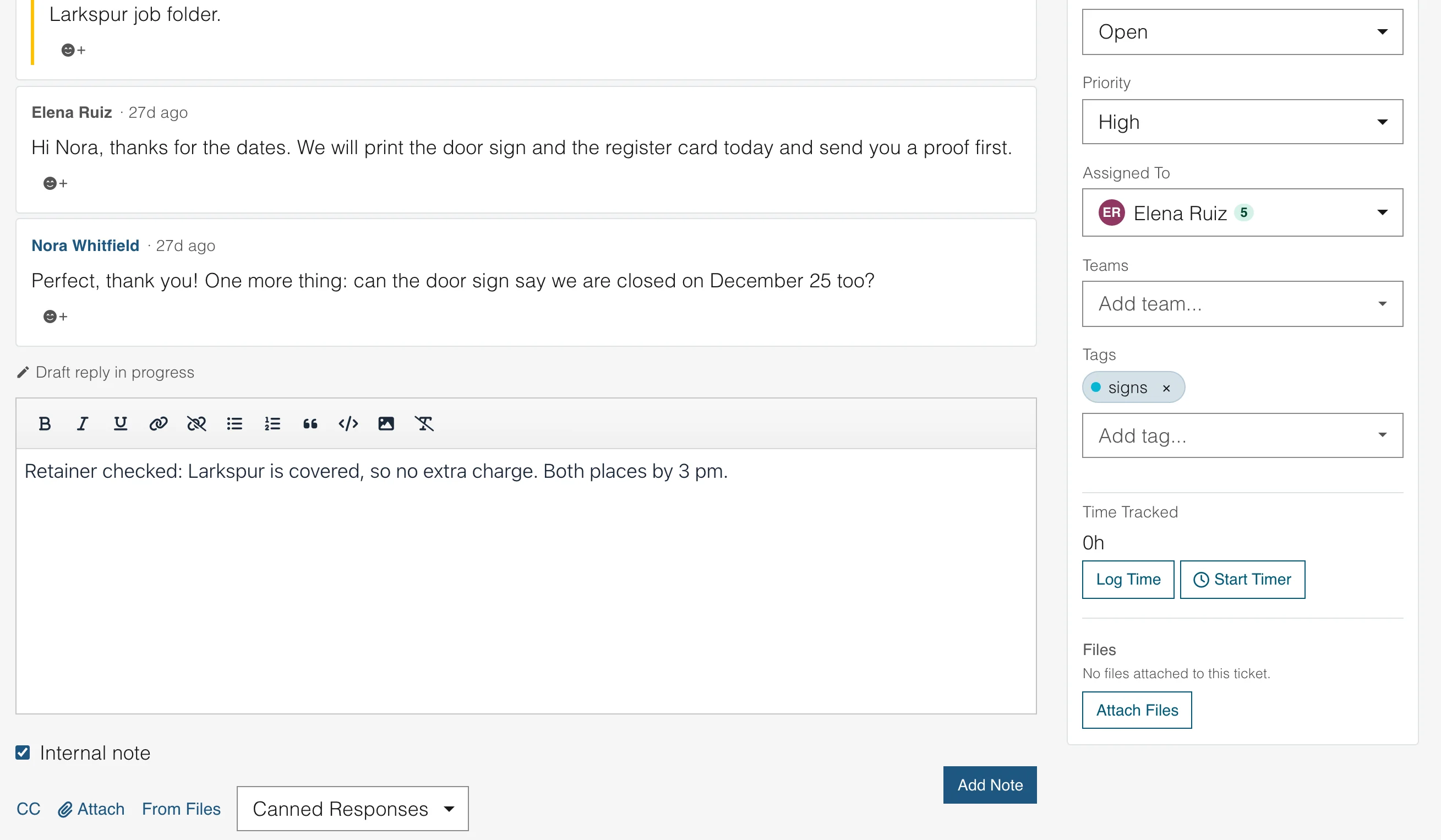
Private notes
Your customer never sees a note, and it never goes out as an email.
Status and priority
Mark each email open, pending or closed, and set how urgent it is.
The whole history in one place
Every reply and note stays in the thread, in order, so a new teammate can pick it up.
Helpdesk
Saved replies for the questions you hear most
Write an answer once and use it again in two clicks. Pick a saved reply while you write, change a word or two, and send.
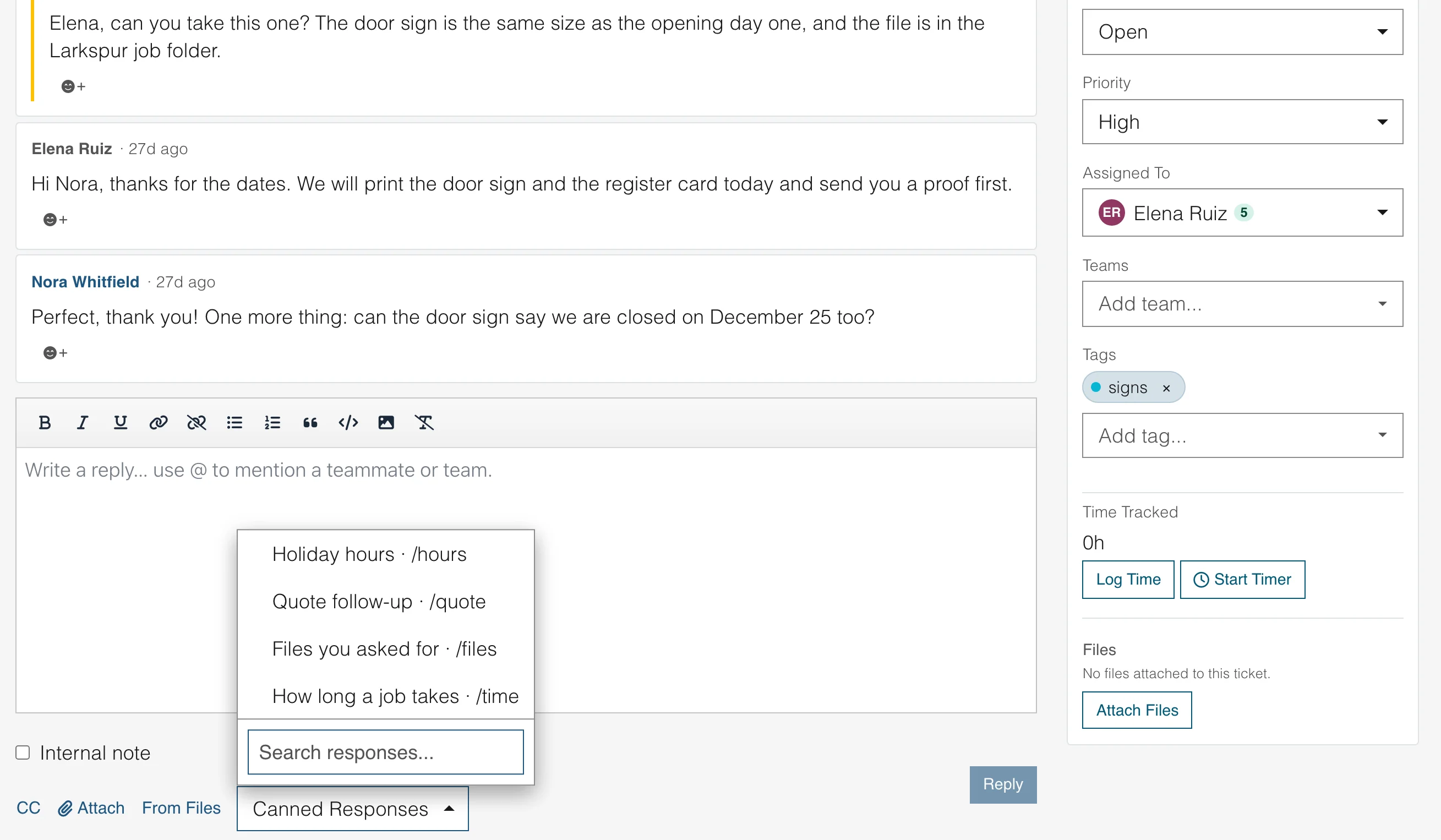
A shortcut for each
Give a saved reply a short word, such as /hours, to find it fast.
Shared by the team
Everyone uses the same wording, so customers get the same answer from every teammate.
Edit before you send
A saved reply is a start. Change it to fit the customer.
Helpdesk
Set how fast each customer email gets an answer
Choose a first-reply time and a finish time for every priority, then see which emails are close to running late. The clock can count only the hours you are open.
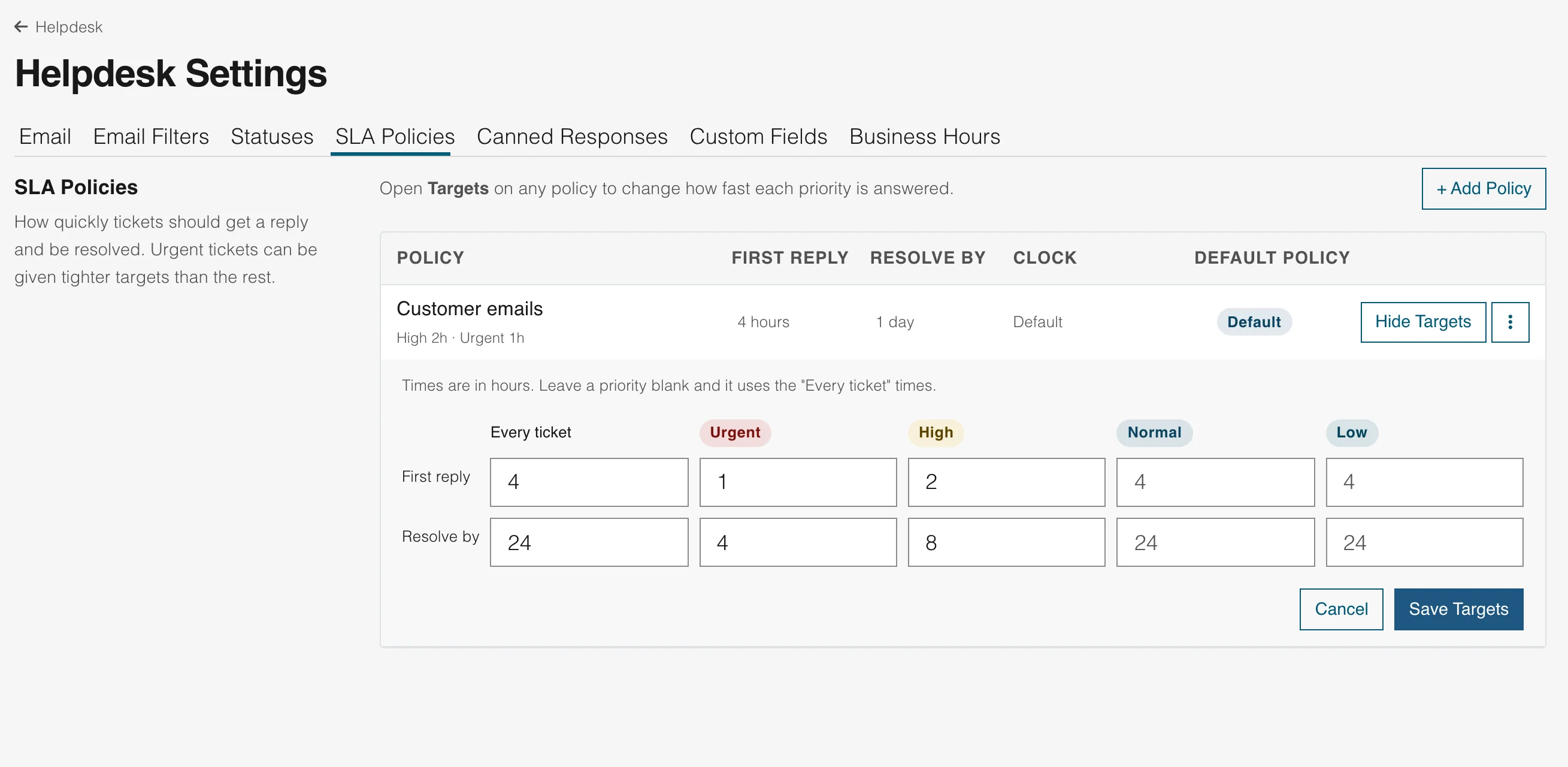
A target for each priority
Urgent emails can get a one-hour reply while normal ones get four.
Your business hours
Set your weekly schedule, your holidays and your time zone, and the clock waits while you are closed.
See what is running late
Emails close to their deadline stand out, so you pick them up first.
Helpdesk
Use your own address, or start with one we host
Connect the address your customers already write to, or start the same day with an address we set up for you. Each address gets its own inbox.
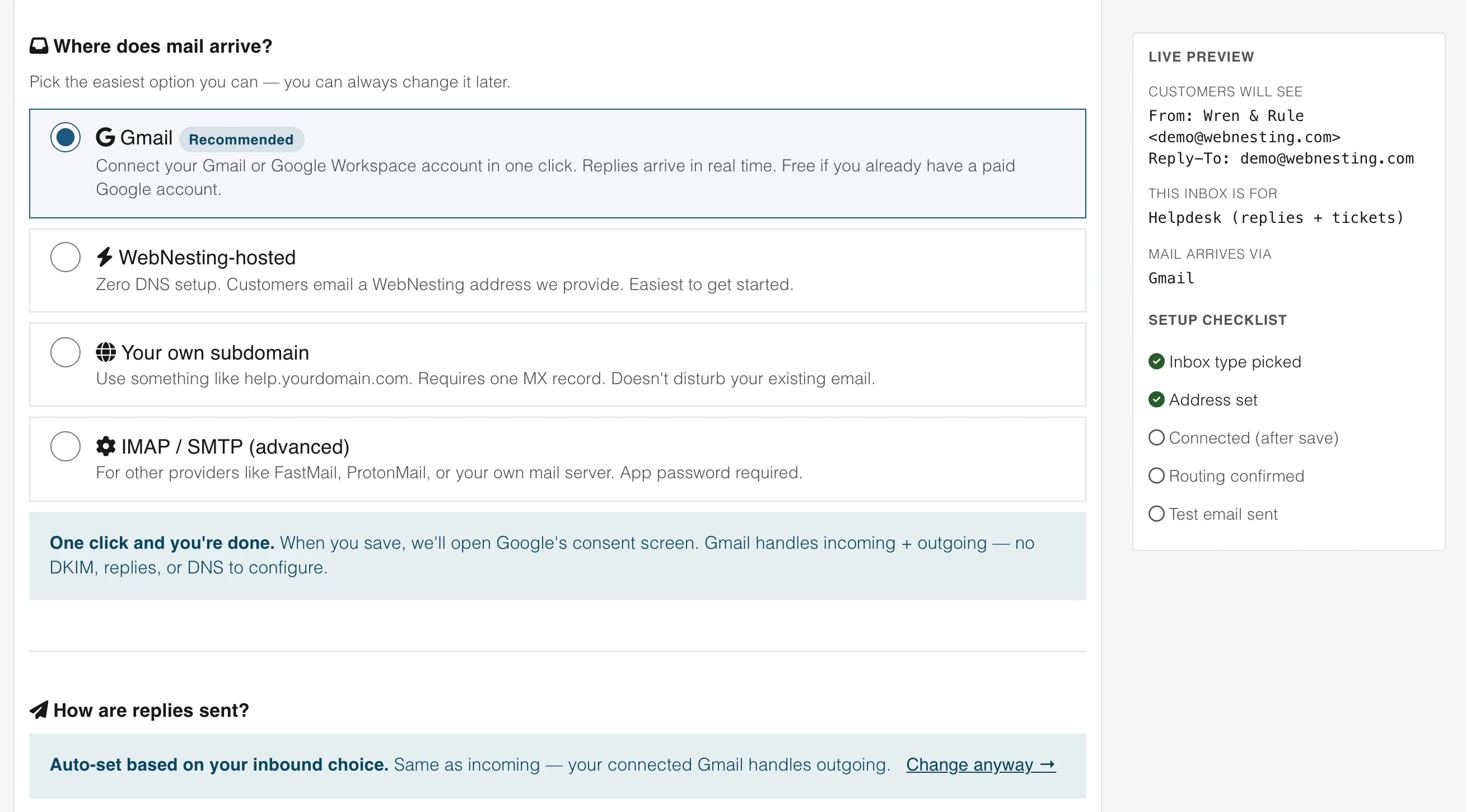
Gmail or your own mail server
Connect Gmail in one click, or any other provider by IMAP.
An address we host
There is no DNS to set up. Customers write to an address we give you.
One inbox per address
Keep sales and support apart, each with its own team and replies.
Helpdesk
Publish a help center on your website
Write the answers you give again and again as guides, and publish them on your own site. Customers find the answer first, so your team gets fewer of the same email.
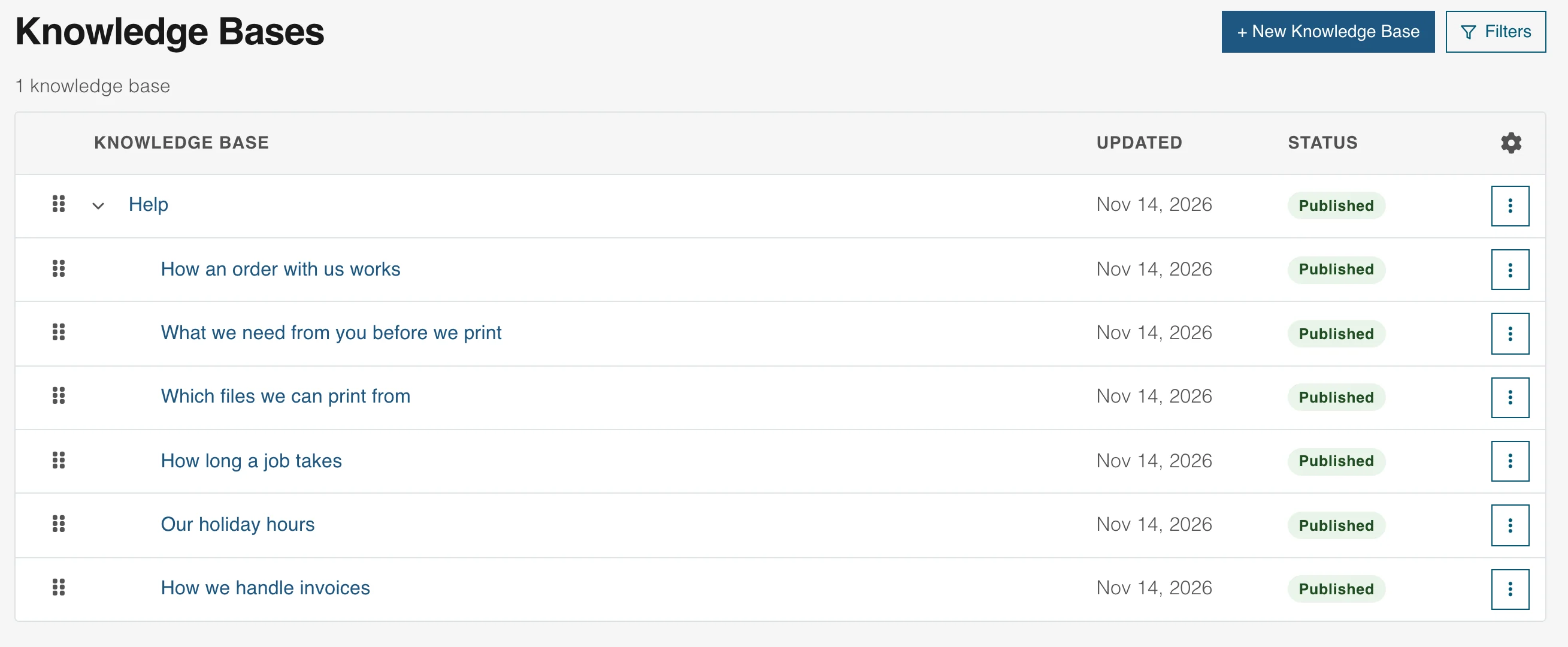
Guides on your own site
Each guide has its own address, so search engines and customers can find it.
Sorted under a top guide
Group guides under headings and keep them in the order you choose.
Written in the same editor
Guides use the editor you already use for your pages. Keep one a draft until it is ready.
A helpdesk that works with your other tools
From a website form to a finished task
A customer email can start on your website and end as a task. The two stay linked, so the answer is never lost.
A customer asks
Helpdesk
A form on your site lands in the inbox
A form on your website can start a customer email, with the contact filled in. A teammate picks it up and everyone sees who has it.
- The form adds the contact too
- Emails to your own address arrive the same way
The work needs doing
Tasks
Turn the email into a task
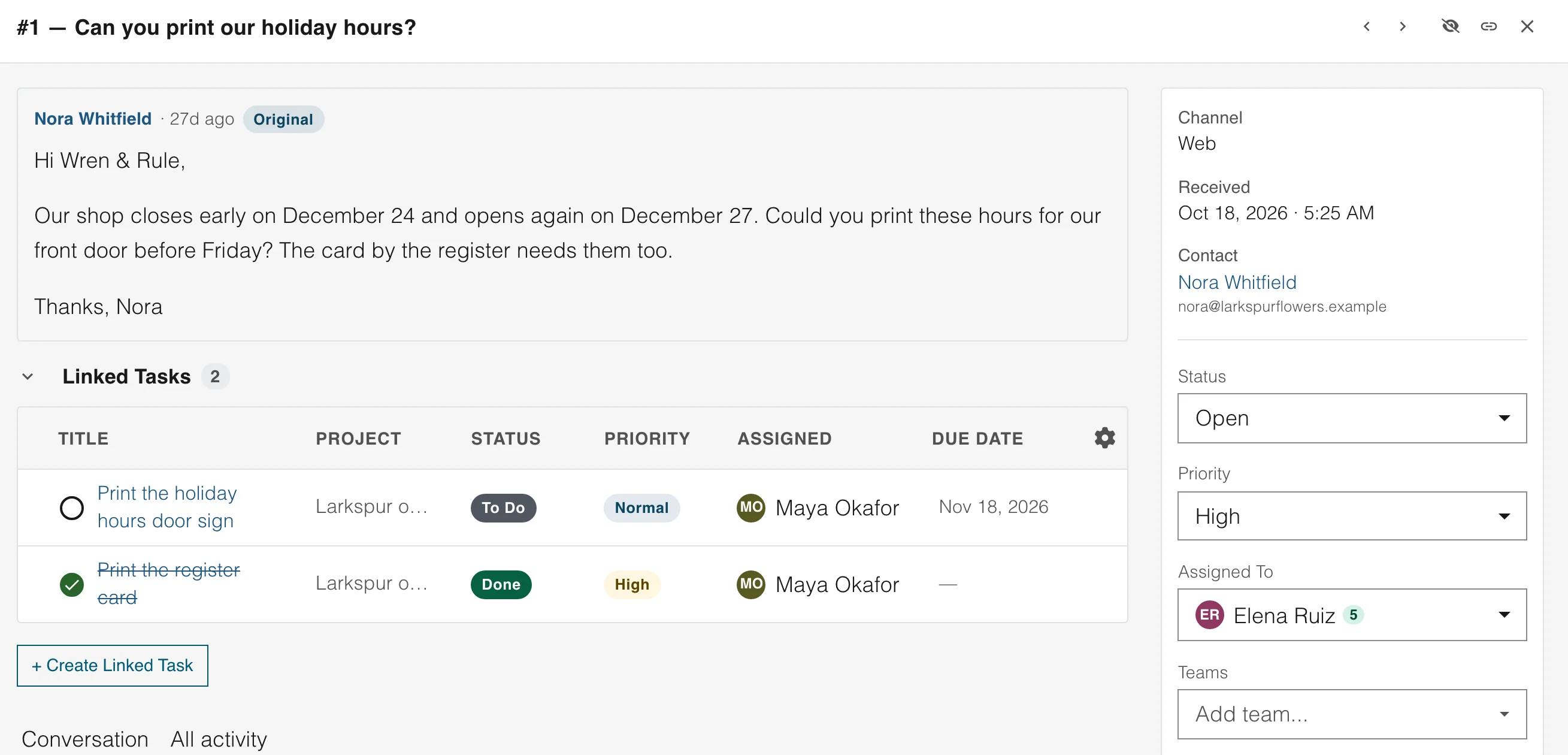
Create a task from any customer email. It keeps a link to the email, so the person doing the work can read what the customer asked.
- Give it a due date and a teammate
- See every linked task under the email
Your whole team
Your whole team is included, with no per-seat charges
Add every person who helps with customer emails. Roles decide who can see and change what, and nobody costs extra.
FAQ
Helpdesk questions
A helpdesk, often called a ticketing system, is software that collects your customers' emails in one place, so a team can answer them together. Each email has an owner, a status and a priority, and the whole conversation stays in one thread.
A shared mailbox shows everyone the same messages. It cannot tell you who is answering, what is waiting or how long it has waited. A helpdesk gives each email an owner, a status, a priority, private notes and response-time targets.
Connect the address your customers write to, add your teammates, and write three saved replies for the questions you hear most. Add response-time targets once you see how many emails come in.
Set a first-reply time and a finish time for each priority. The inbox shows which emails are close to running late, and the clock can count only your business hours.
Yes. A team of two works well: one inbox, a name on every email and saved replies you both use. There are no seat fees, so a third teammate costs nothing extra.
Answer your customers as a team
One shared inbox for every customer email, with Marketing, Tasks and a website when you need them. Your whole team is included.